Back to Documentation

Managing Clients and Sending Invites

Create and manage clients, send access link invitations, track link status, send reminders, and manage the complete client onboarding workflow.

This guide covers how to create and manage clients, and how to send access link invitations to request account access.

Overview

Clients are the businesses or individuals you want to request account access from. Access links (invites) are the invitations you send to clients to grant you access to their accounts.

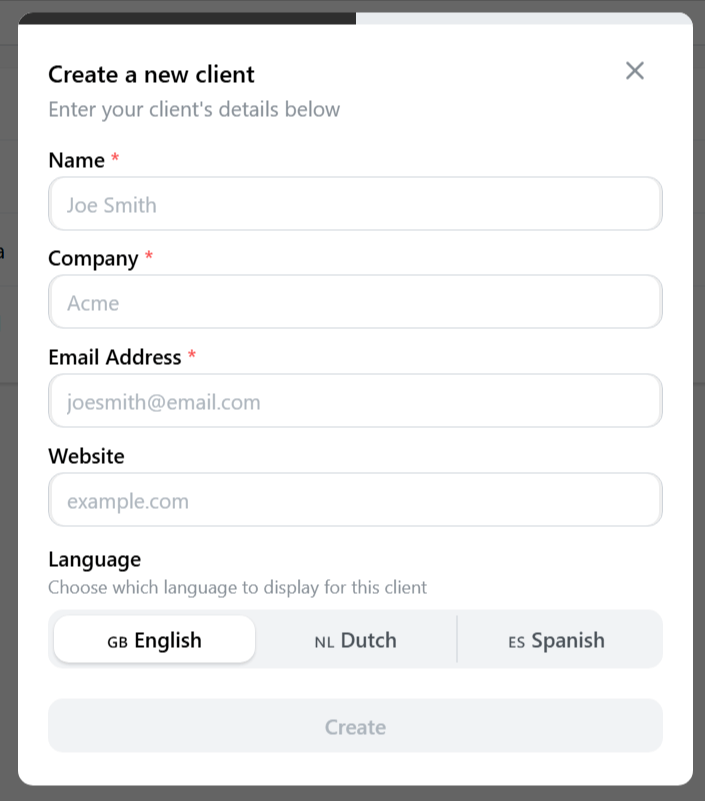
Create client modal
Add a new client
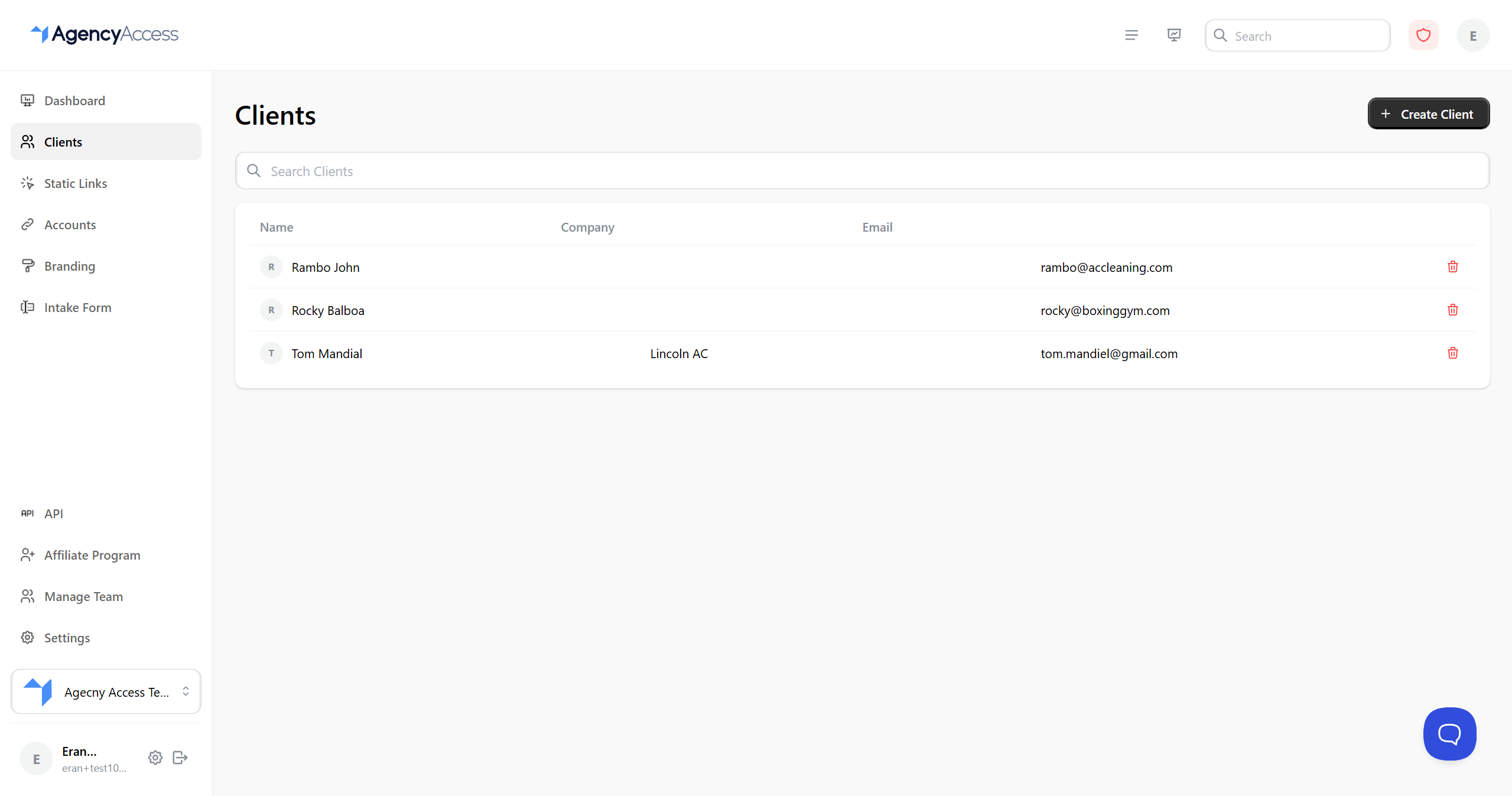
Clients list showing all clients
Your clients list

Accessing Clients

Navigate to Dashboard → Clients from the main navigation menu.

Creating a Client

Method 1: From the Clients Page

  1. Go to the Clients page
  2. Click "Create Client" button (top right)
  3. Fill out the client form:
  • Name: Client's full name
  • Email: Client's email address (required)
  • Company: Company name
  • Website: Client's website URL (optional)
  • Type: Choose "Client" or "Prospect"
  • Language: Select client's preferred language (English, Spanish, or Dutch)
  1. Optionally upload a profile picture or use website favicon
  2. Click "Create"

You can also create a client when creating an access link:

  1. Start creating a new access link
  2. In the client selection field, choose "Create New Client"
  3. Fill out the client information
  4. Continue with link creation

Client Types

Client

  • Active clients you're working with
  • Counts toward your access link limit
  • Full client management features

Prospect

  • Potential clients you're prospecting
  • Separate access link limit (if applicable to your plan)
  • Same features as regular clients

Managing Clients

Viewing Client List

The Clients page shows:

  • Client name
  • Company name
  • Email address
  • Profile picture (if set)

You can:

  • Search: Use the search bar to find clients by name, email, company, or ID
  • Filter: Filter by client type (Client or Prospect)
  • Sort: Click column headers to sort

Viewing Client Details

  1. Click on a client from the list
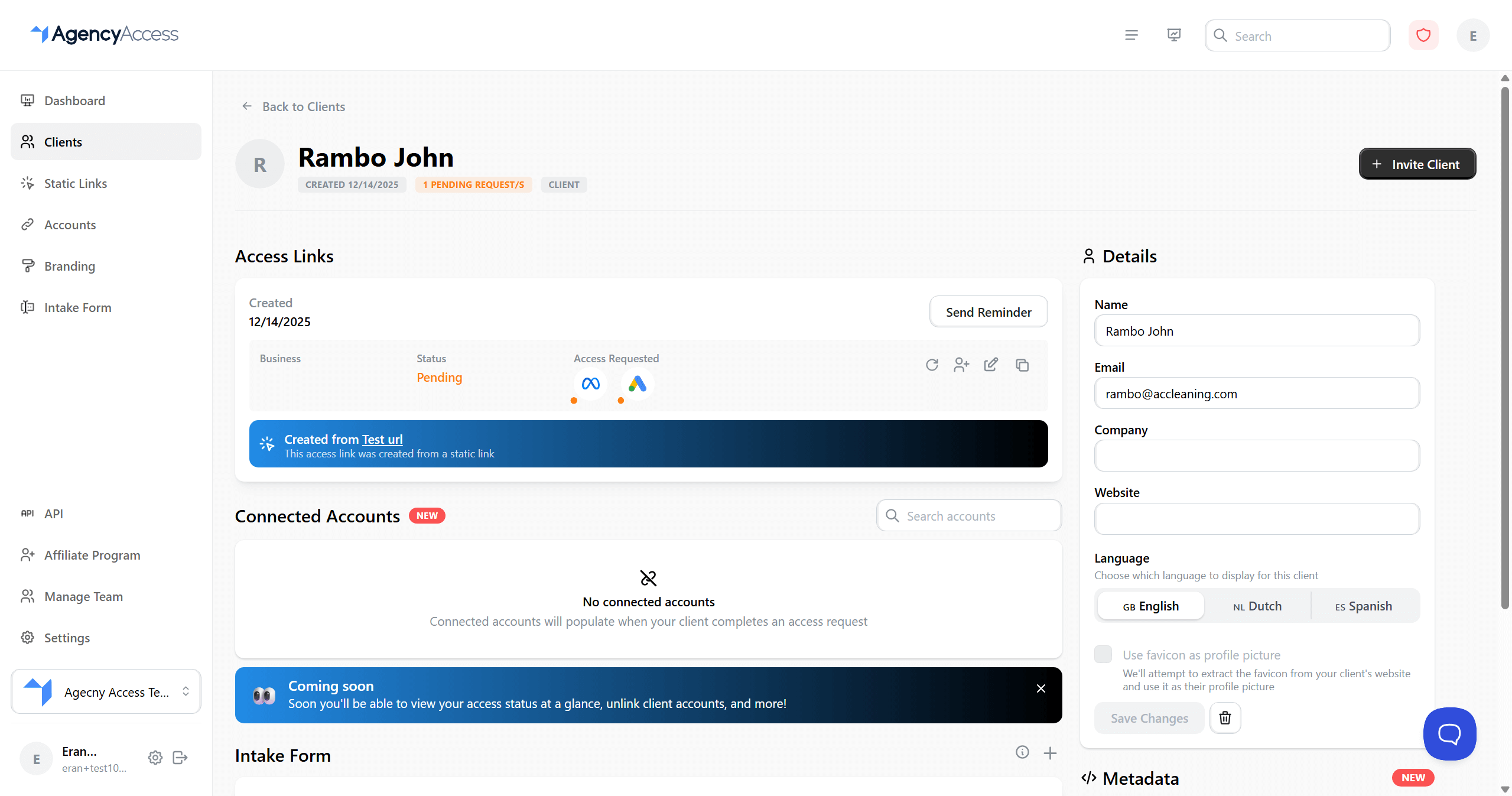
  2. View client information:
  • Contact details
  • Connected accounts
  • Access link history
  • Intake form responses (if applicable)
  • Metadata
Client profile page with details and access links
Client profile and access history

Editing Client Information

  1. Navigate to the client's detail page
  2. Click "Edit" on any field
  3. Update the information
  4. Save changes

Editable Fields:

  • Name
  • Email
  • Company
  • Website
  • Language
  • Profile picture
  • Metadata

Deleting a Client

  1. Go to the client's detail page
  2. Click "Delete Client" (usually in settings or actions menu)
  3. Confirm deletion

Warning: Deleting a client will also delete all associated access links and data.

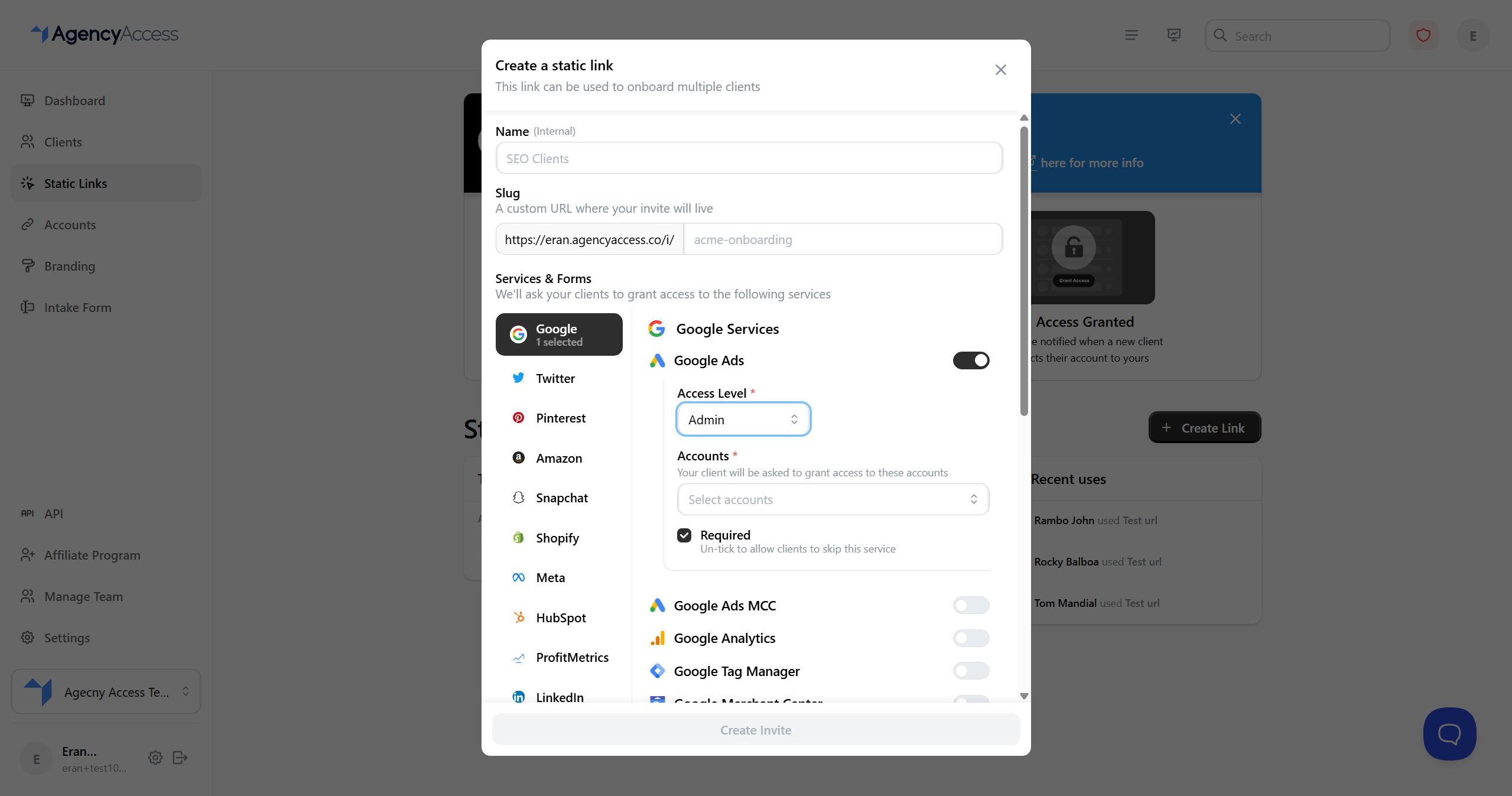
Create access link modal with service selection
Creating a new access link
  1. Navigate to Dashboard
  2. Click "Create Link" button (or use the quick action in header)
  3. Fill out the invitation form:

Client Selection:

  • Select an existing client from the dropdown
  • Or create a new client

Requested Accounts:

  • Select the platforms you want access to (Google, Meta, etc.)
  • For each platform, choose specific services:

- Google: Ads, Analytics, Search Console, etc.

- Meta: Ads, Pages, Product Catalog, etc.

  • Set access levels (Admin, Read-only, etc.) for each service
  • Select which of your linked accounts to use for each service

Additional Options:

  • Include Intake Form: Check to require client to fill out intake form
  • Send Email: Automatically send invitation email to client
  • Thank You Message: Custom message shown after client grants access
  • Redirect URL: URL to redirect client to after completion (must be HTTPS)
  • Retain Tokens: Advanced feature - Retain access tokens for 30 days after access is granted. Tokens will be sent to your Zapier integration and viewable on the dashboard. Only use if absolutely necessary.
  1. Click "Create Link"
  1. Select Appropriate Services: Only request access to services you actually need
  2. Use Correct Access Levels: Request the minimum access level needed (e.g., Read-only vs Admin)
  3. Personalize Messages: Add a thank you message to personalize the experience
  4. Set Redirect URL: Guide clients to your website or portal after completion
  5. Send Email: Enable email sending for better client experience

Access links can be viewed:

  • From the client's detail page (all links for that client)
  • From the Dashboard (recent links shown in the access links list)

Links are displayed as cards showing:

  • Client information
  • Requested services and their grant status
  • Creation date
  • Action buttons (Edit, Send Reminder, Add CC, Copy Link)

Links show grant status for each requested service:

  • Pending: Service access hasn't been granted yet (orange indicator)
  • Granted: Service access has been granted (green indicator)
  • Skipped: Service was skipped by the client (gray indicator)

The overall link status is based on whether all requested services have been granted:

  • Pending: Not all services have been granted yet
  • Granted: All requested services have been granted (and intake form completed if required)

You can update a link to modify the requested services:

  • Add or remove requested services
  • Change access levels for services
  • Change which linked accounts are used for services

Note: You cannot update the thank you message or redirect URL after a link is created. These must be set during link creation.

Steps:

  1. Find the link in the Dashboard or on the client's detail page
  2. Click the Edit icon (pencil) on the link card
  3. In the modal, modify the requested services and access levels
  4. Optionally check "Send email update" to notify the client
  5. Click "Save Changes"

Important Notes:

  • If you add services that were already granted, the client will be asked to grant access again
  • If you change access levels or account links for already-granted services, the client will need to grant access again
  • Thank you message and redirect URL cannot be changed after link creation

Sending Reminders

If a client hasn't completed the access grant process:

  1. Find the link in the Dashboard or on the client's detail page
  2. Click "Send Reminder" button on the link card
  3. An email reminder will be sent to the client

Reminder Limits:

  • You can only send one reminder every 2 hours per link
  • Reminders cannot be sent if the client has already granted all requested access
  • The button will be disabled if you've sent a reminder within the last 2 hours

Adding CC Recipients

You can CC additional people on access link emails:

  1. Find the link in the Dashboard or on the client's detail page
  2. Click the Add CC icon (user plus icon) on the link card
  3. Enter name and email address in the modal
  4. Click "Send"
  5. The CC recipient will receive the access link email

Note: You cannot add the original client's email as a CC recipient. Use "Send Reminder" instead.

Each link card shows:

  • Client information (name, email, company)
  • Requested services with status indicators (Pending/Granted/Skipped)
  • Overall grant status
  • Intake form status (if applicable)
  • Creation date
  • Last reminder sent timestamp (if a reminder was sent)
  • CC recipients (if any were added)

You can also:

  • Copy Link: Click the copy icon to copy the link URL
  • View Tokens: If "Retain Tokens" was enabled, view access tokens via the key icon
  • Edit Link: Modify requested services via the edit icon
  • Send Reminder: Resend the invitation email

Your subscription plan determines:

  • Monthly Access Links: Number of client links you can create per month
  • Monthly Prospect Links: Number of prospect links you can create per month
  • Total Active Links: Maximum number of active links at once

Checking Your Limits:

  • Limits are shown when creating links
  • You'll receive a warning if approaching limits
  • Upgrade your plan to increase limits

Static links are reusable invitation links that don't require pre-creating clients. See the Static Links documentation for more details.

Client Experience

When a client receives an access link:

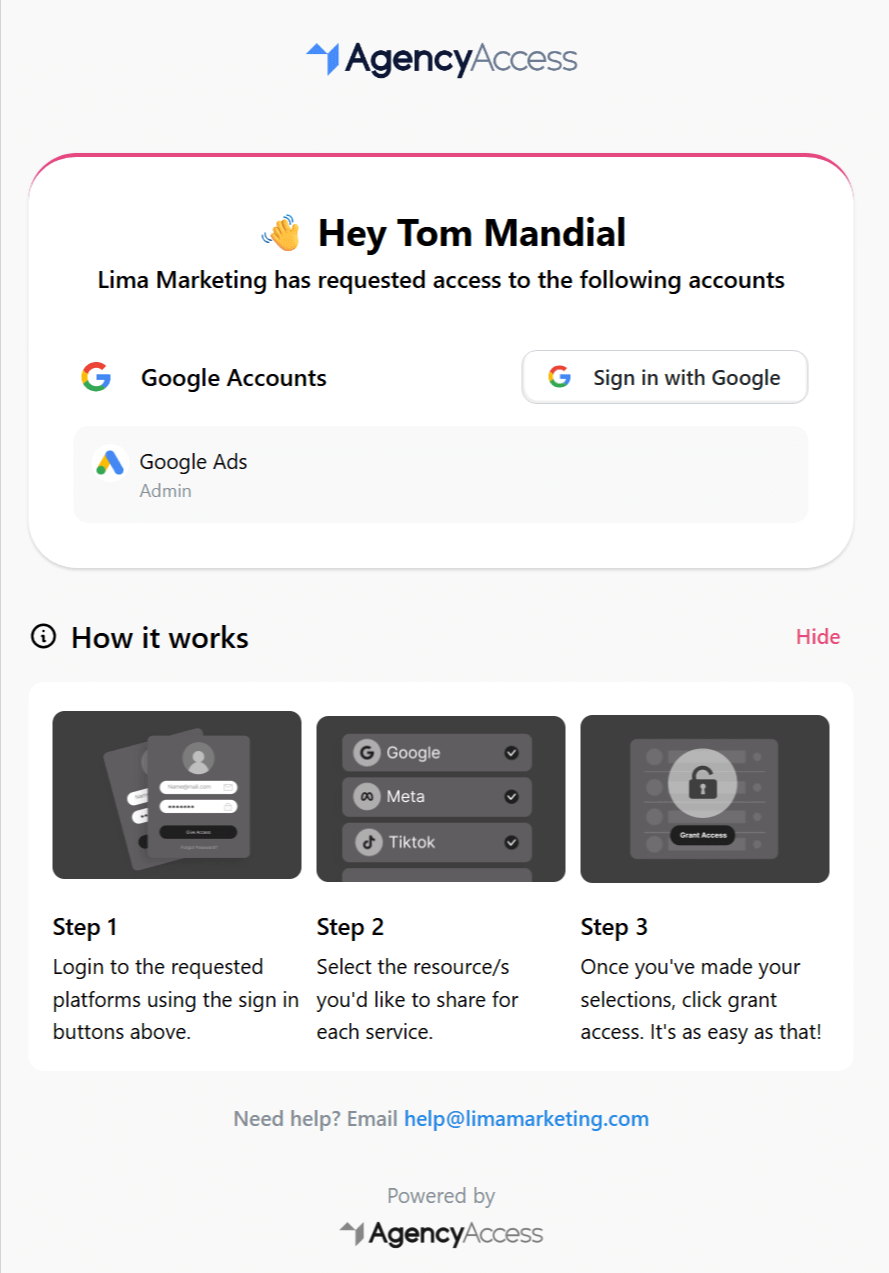
Client-facing invitation page from static link
What your clients see when using a static link
  1. They receive an email (if email sending is enabled)
  2. They click the link in the email
  3. They see your branded invitation page
  4. They grant access to requested accounts through OAuth flows
  5. They may be asked to fill out an intake form
  6. They see your thank you message
  7. They're redirected to your specified URL (if set)

You can require clients to fill out an intake form as part of the access grant process:

  1. When creating a link, check "Include Intake Form"
  2. The client will be prompted to fill out the form after granting access
  3. Form responses are saved to the client's profile
  4. You can view responses on the client's detail page

Note: You must have an intake form set up before you can include it in links. See Setting Up Intake Forms for details.

Troubleshooting

Issue: Client reports link doesn't work

Solutions:

  • Verify the link hasn't expired
  • Check that the link ID is correct
  • Ensure the client is using the exact link from the email
  • Try sending a new link

Access Grant Fails

Issue: Client grants access but it doesn't register

Solutions:

  • Check that your linked account is still valid
  • Verify OAuth permissions are correct
  • Refresh your linked account
  • Check platform-specific requirements

Issue: Cannot create new links

Solutions:

  • Wait for monthly limit reset
  • Delete unused links
  • Upgrade your subscription plan
  • Use static links for reusable invitations

Email Not Received

Issue: Client didn't receive invitation email

Solutions:

  • Check spam/junk folder
  • Verify email address is correct
  • Send reminder email
  • Copy link manually and send via your email client

Best Practices

  1. Organize Clients: Use consistent naming and company information
  2. Request Only What's Needed: Don't request unnecessary access levels
  3. Personalize Messages: Add thank you messages to improve client experience
  4. Follow Up: Send reminders for pending links
  5. Use Static Links: For common scenarios, use static links to save time
  6. Track Status: Regularly check link status and follow up as needed
  7. Document Access: Keep notes on what access was granted and why

Next Steps

After creating clients and links:

  • Set up intake forms to gather client information
  • Customize branding for a professional look
  • Explore static links for reusable invitations
  • Use the API for automated link creation

For more information, see: