
This guide explains how to connect the agency accounts AgencyAccess will use when clients grant access.
Before you send an invite, connect the account that should receive access. For example, connect your agency Google account before requesting Google Ads or Analytics access, and connect your Meta account before requesting Meta assets.
Overview
The Accounts page shows every platform AgencyAccess can request access for, whether your agency account is connected, and any actions available for that account.
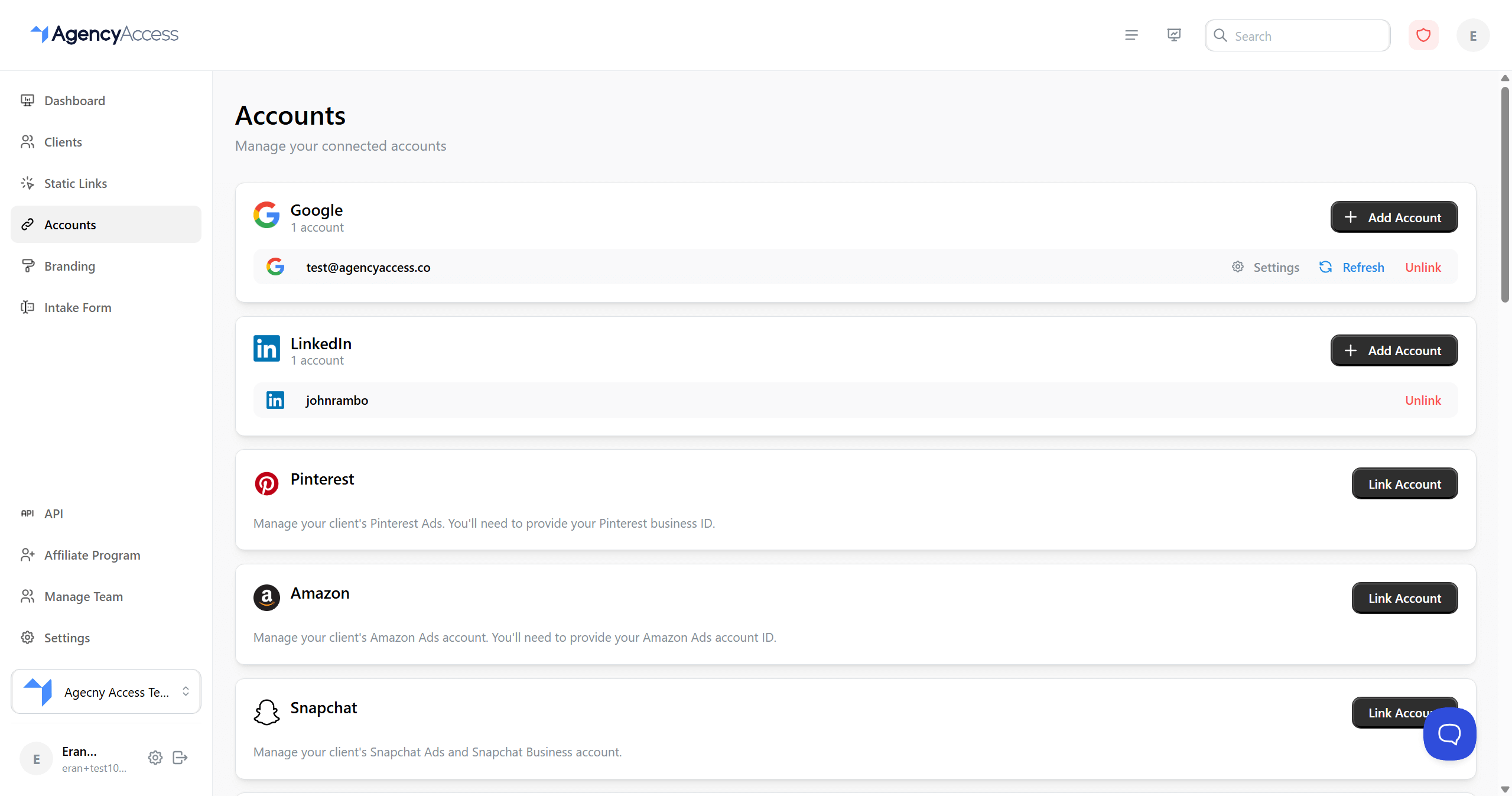
Use this page to:
- Connect agency accounts.
- Add more than one account for supported platforms.
- Refresh OAuth permissions.
- Configure Google Business Profile settings.
- Disconnect accounts you no longer want to use.
Accessing Accounts
Go to Dashboard -> Accounts.
Supported Platforms
The available services come from the platform list used by the invite builder.
Google Ads, Google Ads MCC, Google Analytics, Google Tag Manager, Google Merchant Center, Google Search Console, YouTube Studio, Google Business Profile, and Looker Studio.
Meta
Meta Ads, Facebook Pages, Facebook Product Catalog, Meta Pixels, and Instagram.
Other Advertising Platforms
LinkedIn Ads, LinkedIn Company Page, TikTok Ads, Twitter Ads, Twitter Delegate Account, Pinterest Ads, Microsoft Ads, Microsoft Clarity, Snapchat Ads, Snapchat Business, Reddit Ads, and Apple Search Ads.
Ecommerce, CRM, and Site Platforms
Shopify Store Collaborator, HubSpot Partner, Klaviyo, Mailchimp, WordPress, Lightspeed, Channable, Cookiebot, ProfitMetrics Partner, Hotjar Dashboard, ActiveCampaign Account, Wix Site, and Webflow Site.
Linking an Account
- Go to Accounts.
- Find the platform you want to connect.
- Click Link Account.
- Complete the OAuth flow or manual setup form.
- Confirm the account appears as connected.
Use the account you want clients to grant access to. If your agency has several Google or Meta accounts, connect the one that should receive access for the client work you are setting up.
OAuth and Manual Platforms
Some platforms open an OAuth authorization screen. Others ask for a partner link, account ID, handle, or email address.
OAuth platforms include Google, Meta, LinkedIn, TikTok, Microsoft, Snapchat, Reddit, and Apple Search Ads where applicable.
Manual or partner-link platforms include Shopify Store Collaborator, HubSpot Partner, ProfitMetrics Partner, Cookiebot, WordPress, Lightspeed, Channable, Wix, Webflow, Hotjar, ActiveCampaign, Klaviyo, and Mailchimp.
The exact form depends on the platform. Follow the labels in the connection modal and use the account details your clients should grant access to.
Multiple Accounts
Some plans allow more than one connected account for the same platform. Use this when different team members, business units, or manager accounts should receive access for different clients.
- Find the connected platform.
- Click Add Account or Link Account again.
- Complete the connection flow.
- Choose the correct connected account when creating an invite or access page.
Google Business Profile Settings
Connected Google accounts can store Google Business Profile settings.
- Find the connected Google account.
- Click the settings action.
- Enter the GMB ID if clients should invite a specific Google Business Profile ID.
- Enable Use Google My Business ID when that ID should be used instead of the connected account email.
- Save the settings.
Google Ads Access Methods
AgencyAccess supports two Google Ads request methods.
Google Ads asks the client to grant direct access to their Google Ads account. Choose the access level you need, such as Admin, Standard, Read Only, or Email Only.
Google Ads MCC links the client's account to your Google Ads Manager Account. Select the manager account from your connected Google account when building the invite.
You choose the method per invite or access page. Both can be used alongside other Google services.
Refreshing Access
If a connected account stops working or permissions change:
- Find the account.
- Click Refresh.
- Complete the authorization flow again.
Refreshing updates permissions and tokens. It does not remove the account from AgencyAccess.
Disconnecting an Account
- Find the account.
- Click the unlink action.
- Review the warning.
- Confirm the unlink.
Any pending invite or access page using that connected account may stop working. If you only need to renew permissions, use Refresh instead.
Troubleshooting
The platform does not appear when creating an invite
Make sure the matching agency account is connected first. The invite builder only shows services that can be requested with your current setup.
OAuth fails or redirects incorrectly
Try a private window, disable popup blockers, and confirm you are signing in with the correct platform account.
The account is connected but requests fail
Refresh the account, then check that the connected account has the right platform permissions. For Google Business Profile, confirm the GMB ID is correct if that setting is enabled.
Next Steps
After connecting accounts, create a client and send a focused invite.