Back to Documentation

Customizing Branding

Customize your access links with your brand colors, logo, messaging, and custom subdomain. Make client-facing pages match your brand identity.

This guide explains how to customize the appearance of your access links and client-facing pages to match your brand.

Overview

Branding customization allows you to:

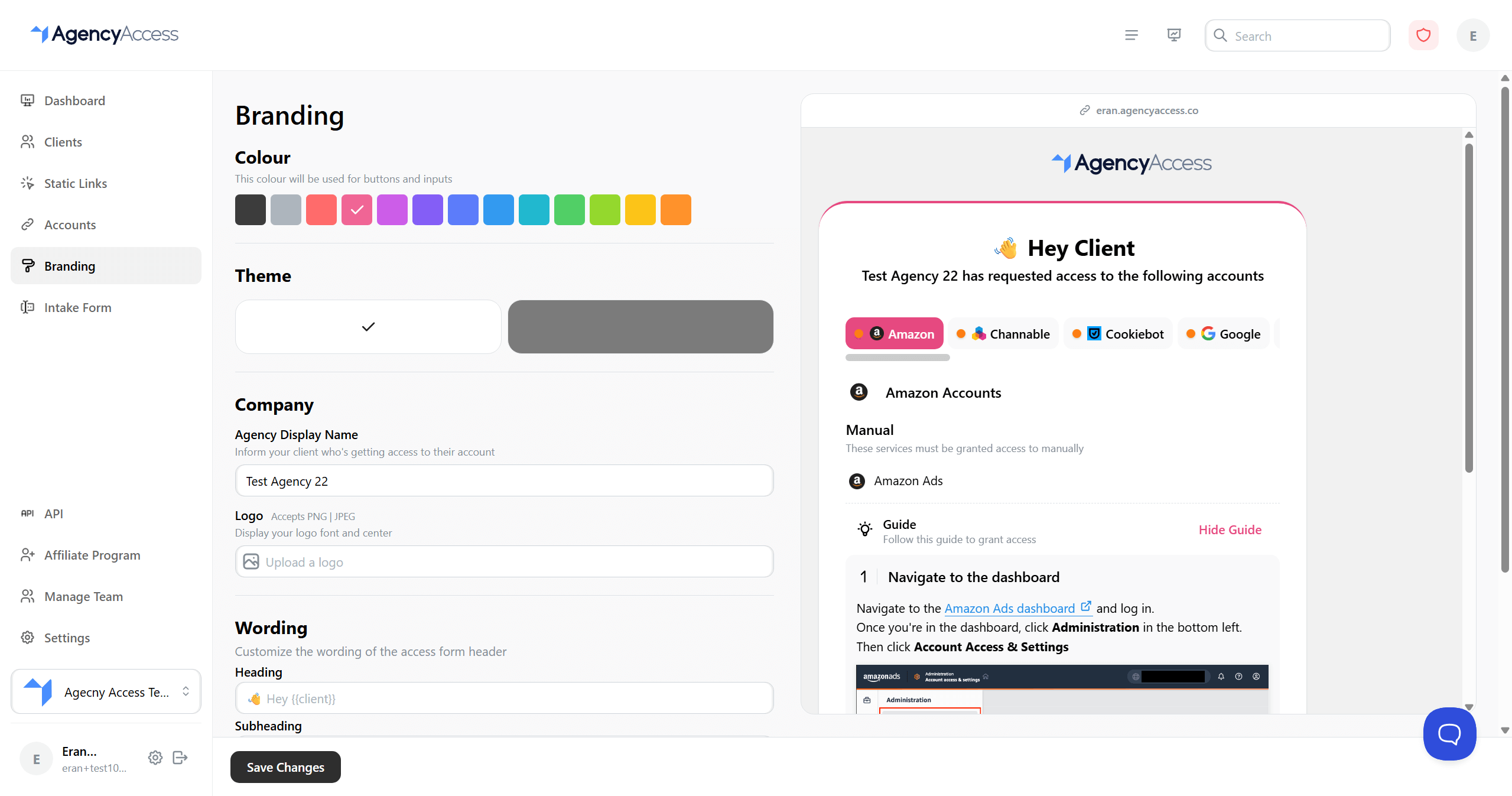
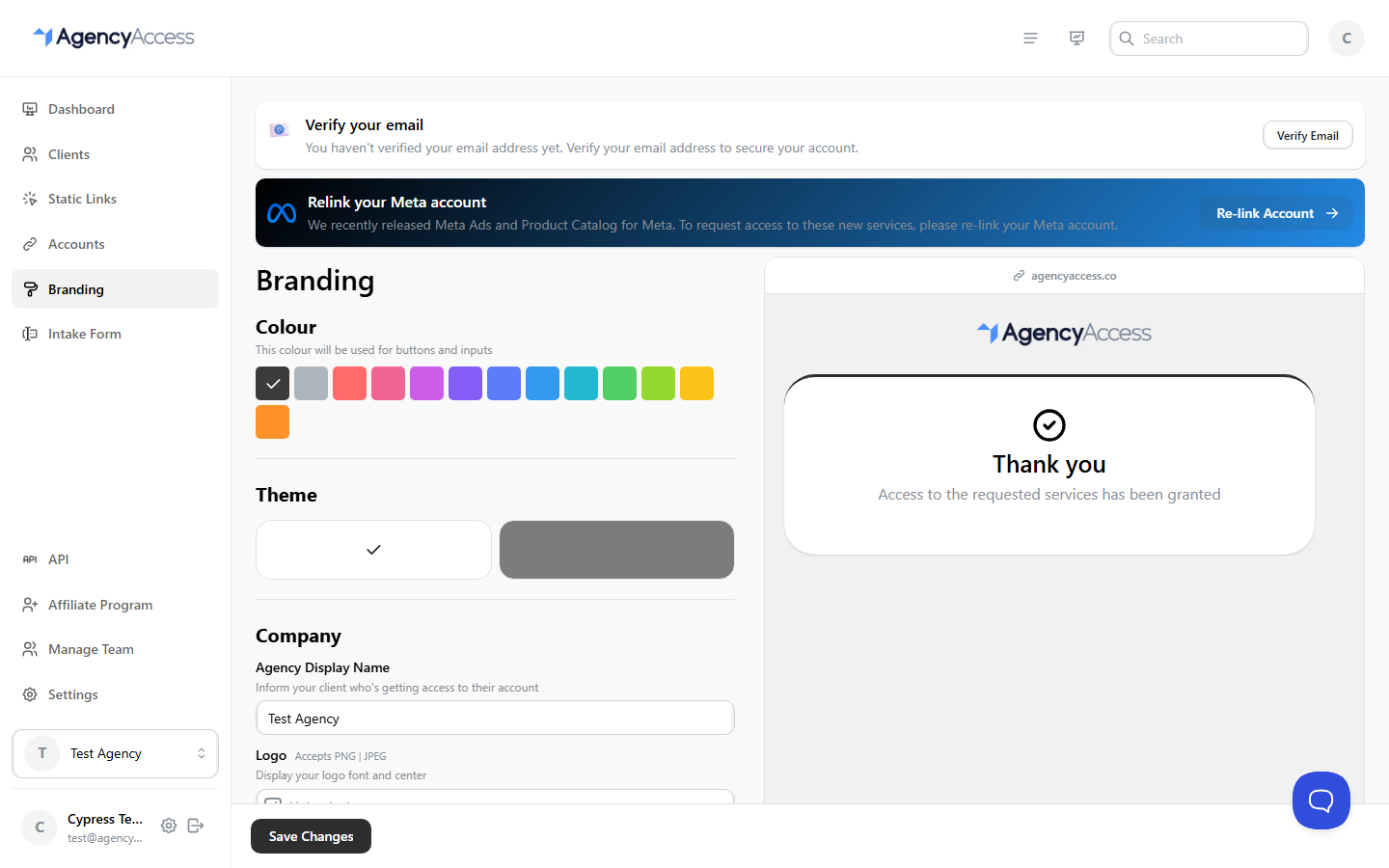
Branding settings with color picker, theme, and logo options
Branding configuration options
  • Change colors and themes
  • Add your company logo
  • Customize messaging and wording
  • Set up a custom subdomain (premium feature)

All branding changes apply to your access links, invitation pages, and emails sent to clients.

Accessing Branding Settings

Navigate to Dashboard → Branding from the main navigation menu.

Plan Requirements:

  • Color & Theme: Requires Premium plan or higher
  • Logo: Requires Starter plan or higher
  • Wording Customization: Requires Premium plan or higher
  • Custom Subdomain: Requires Premium plan or higher

Color Customization

Choosing a Brand Color

The brand color is used for:

  • Buttons on invitation pages
  • Input field highlights
  • Call-to-action elements
  • Progress indicators

Steps:

  1. Go to the Branding page
  2. Find the "Colour" section
  3. Use the color picker to select your brand color
  4. The preview updates in real-time
  5. Click "Save Changes" when satisfied

Tips:

  • Choose a color that matches your brand guidelines
  • Ensure sufficient contrast for accessibility
  • Test how it looks with both light and dark themes

Theme Selection

You can choose between light and dark themes for your invitation pages.

Light Theme

  • White background
  • Dark text
  • Your brand color for accents
  • Best for professional, clean look

Dark Theme

  • Dark/black background
  • Light text
  • Your brand color for accents
  • Best for modern, sleek appearance

Steps:

  1. In the "Theme" section
  2. Click on either the light or dark theme option
  3. Preview updates automatically
  4. Click "Save Changes"

Company Branding

Agency Display Name

Set a custom display name that appears to clients instead of your agency name.

Use Cases:

  • Show a different business name
  • Use a department name
  • Display a project-specific name

Steps:

  1. In the "Company" section
  2. Find "Agency Display Name"
  3. Enter your desired display name
  4. Leave empty to use your agency name
  5. Click "Save Changes"

Logo Upload

Upload your company logo to appear on invitation pages and emails.

Requirements:

  • Starter plan or higher
  • Image format: PNG or JPEG
  • Maximum size: 15MB
  • Recommended: Transparent background PNG for best results

Steps:

  1. In the "Company" section
  2. Find "Logo"
  3. Click "Upload Logo" or drag and drop
  4. Select your logo file
  5. Logo appears in preview
  6. Click "Save Changes"

Logo Management:

  • Remove Logo: Click "Remove" to delete your logo
  • Replace Logo: Upload a new file to replace existing logo
  • Preview: See how logo appears on invitation pages

Best Practices:

  • Use high-resolution logo (at least 200px width)
  • Ensure logo is readable at small sizes
  • Use transparent background for flexibility
  • Test logo appearance on both light and dark themes

Wording Customization

Customize the heading and subheading text that appears on the access form header.

Plan Requirement: Premium plan or higher

Available Customizations

You can customize:

  • Heading: Main title text (e.g., "👋 Hey {{client}}")
  • Subheading: Descriptive text below the heading (e.g., "{{agency}} has requested access to the following accounts")

Custom Variables:

You can use dynamic variables in your wording:

  • {{client}} - Replaced with the client's name
  • {{agency}} - Replaced with your agency name (or display name if set)

Steps:

  1. In the "Wording" section
  2. Enter your custom heading text
  3. Enter your custom subheading text
  4. Preview updates in real-time
  5. Click "Save Changes"

Tips:

  • Keep messaging clear and concise
  • Match your brand voice and tone
  • Use custom variables to personalize the experience
  • Test with actual clients for clarity

Custom Subdomain

Set up a custom subdomain for your invitation links.

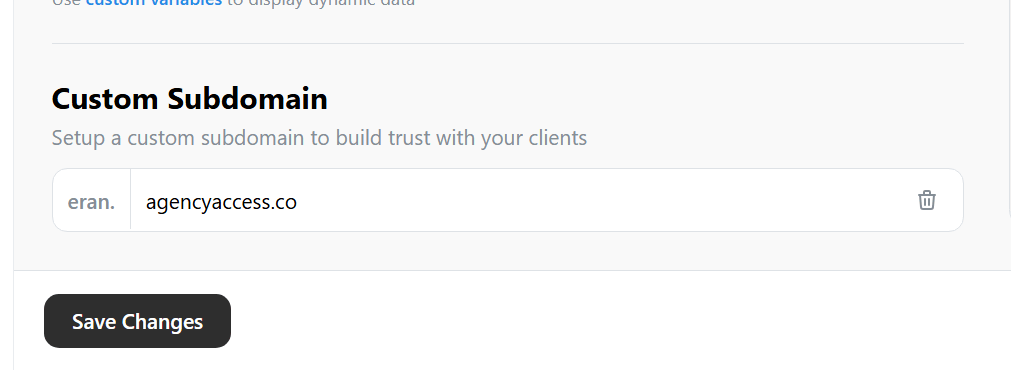
Custom subdomain configuration section
Configure your custom subdomain

Example: Instead of agencyaccess.co/i/abc123, use yourbrand.agencyaccess.co/i/abc123

Setting Up Custom Subdomain

  1. In the "Custom Subdomain" section
  2. Enter your desired subdomain (e.g., "yourbrand")
  3. Click "Claim" to check availability and claim it
  4. If available, the subdomain is immediately active
  5. No DNS configuration required - it works automatically

Requirements:

  • Premium or Agency plan
  • Subdomain must be available (not already claimed)
  • Subdomain must be at least 1 character
  • Cannot be "www"

Releasing a Subdomain:

  • Click the trash icon next to your claimed subdomain
  • Confirm release
  • The subdomain becomes available for others to claim

Note: Custom subdomains are immediately active once claimed. No technical configuration is required.

Preview

The Branding page includes a live preview that shows how your branding will appear to clients.

Using the Preview

  1. Make changes to any branding element
  2. Preview updates automatically on the right side
  3. Test different scenarios:
  • Light vs dark theme
  • With and without logo
  • Different color combinations

Preview Features:

  • Real-time updates
  • Shows actual invitation page layout
  • Includes all branding elements
  • Responsive design preview

Saving Changes

Save Process

  1. Make your branding changes
  2. Review in the preview
  3. Click "Save Changes" button (bottom of page)
  4. Wait for confirmation
  5. Changes apply to all future links immediately

Important:

  • Changes apply to all new access links
  • Existing links may continue using old branding (depending on implementation)
  • You can update branding at any time

Reverting Changes

If you want to revert to default branding:

  • Remove custom logo
  • Reset color to default
  • Clear custom wording
  • Save changes

Branding Best Practices

  1. Consistency: Use consistent branding across all elements
  2. Accessibility: Ensure sufficient color contrast for readability
  3. Logo Quality: Use high-quality, professional logos
  4. Testing: Preview branding on different devices and themes
  5. Brand Guidelines: Follow your company's brand guidelines
  6. Client Experience: Consider how branding affects client perception

Plan Limitations

Free Plan

  • No branding customization available
  • Default AgencyAccess branding on all links

Starter Plan

  • Logo upload
  • No color/theme customization
  • No wording customization
  • No custom subdomain

Premium Plan

  • All Starter plan features
  • Color and theme customization
  • Wording customization (heading and subheading)
  • Custom subdomain

Agency Plan

  • All Premium plan features
  • Priority support for branding issues

Troubleshooting

Logo Not Appearing

Issue: Logo doesn't show on invitation pages

Solutions:

  • Verify logo was saved successfully
  • Check file format (PNG or JPEG only)
  • Ensure file size is under 15MB
  • Clear browser cache
  • Check that you're on a plan that supports logos (Starter or higher)

Color Not Applying

Issue: Brand color doesn't appear correctly

Solutions:

  • Verify color was saved
  • Check color format (hex code)
  • Test in preview first
  • Clear browser cache

Preview Not Updating

Issue: Preview doesn't reflect changes

Solutions:

  • Wait a moment for preview to refresh
  • Manually refresh the page
  • Check browser console for errors
  • Try a different browser

Custom Subdomain Not Working

Issue: Custom subdomain doesn't load

Solutions:

  • Verify subdomain was claimed successfully
  • Check subdomain is active in your settings
  • Contact support for assistance
  • Verify you have Premium or Agency plan

Branding Examples

Professional Services

  • Light theme
  • Subtle brand color (blue, gray)
  • Professional logo
  • Clear, formal wording

Creative Agencies

  • Dark theme
  • Bold brand colors
  • Creative logo treatment
  • Friendly, engaging wording

E-commerce

  • Light theme
  • Brand colors matching website
  • Product-focused messaging
  • Clear call-to-actions

Next Steps

After setting up branding:

  • Create a test access link to see branding in action
  • Share preview with team for feedback
  • Set up intake forms with matching branding
  • Consider custom subdomain for enhanced branding

For more information, see: