This guide covers all account and agency settings you can configure in AgencyAccess.
Overview
Account settings allow you to:


- Manage your agency information
- Configure security settings
- Set up notifications
- Manage your subscription
- Configure integrations
Accessing Settings
Navigate to Dashboard → Settings → General from the main navigation menu.
You can also access settings via:
- Dashboard → Settings from the sidebar
- Quick action menu (spotlight search)
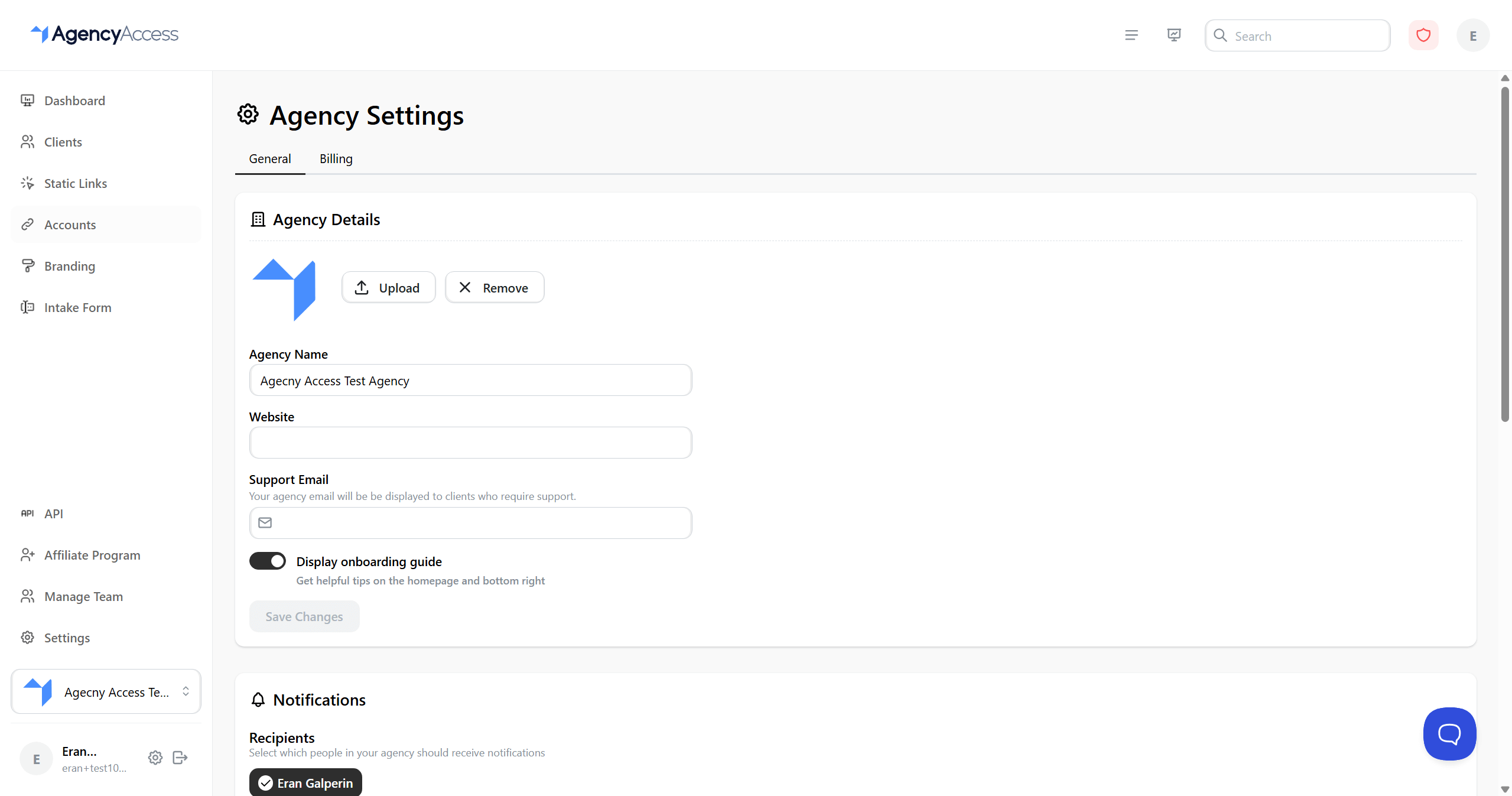
Agency Details
Agency Information
Manage your agency's basic information:
Agency Name:
- Your agency's display name
- Used in emails and client communications
- Can be updated at any time
Website:
- Your agency's website URL
- Optional but recommended
- Used for client reference
Support Email:
- Email address shown to clients for support
- Defaults to your account email
- Can be a shared support inbox
Steps to Update:
- Go to Settings → General → Agency Details
- Edit any field
- Click "Save Changes"
- Changes apply immediately
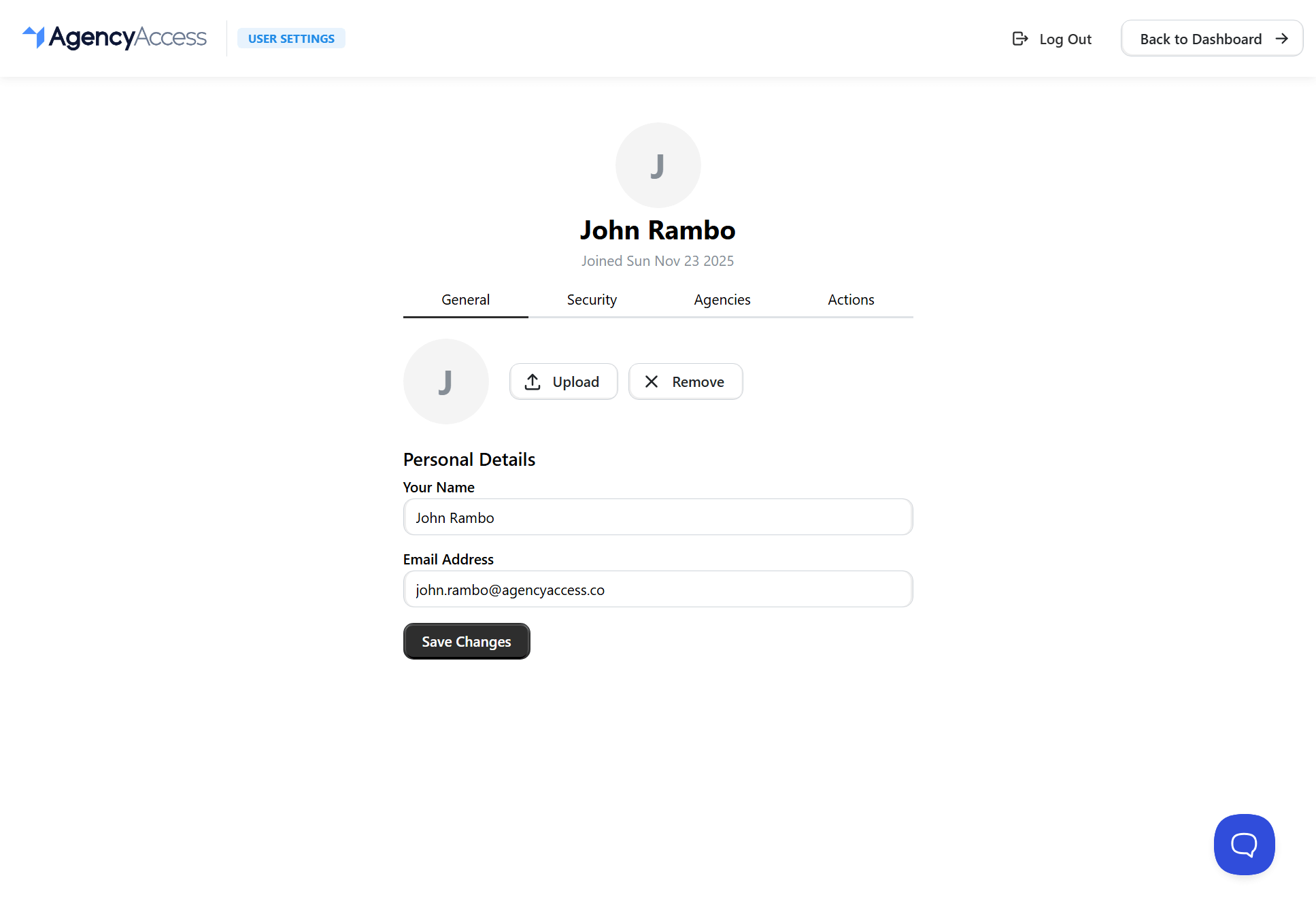
Profile Picture
Upload or update your agency's profile picture:
- In Agency Details section
- Current profile picture is displayed (or initial if none)
- Click "Upload" to select a new image
- Or click "Remove" to delete current picture
- Changes save automatically
Requirements:
- Image format: PNG, JPEG, or GIF
- Maximum size: 15MB
- Recommended: Square image for best results
Security Settings

Changing Your Password
Update your AgencyAccess account password:
- Click your profile/avatar (top right) to go to Settings page
- Navigate to Security tab
- Enter your current password
- Enter your new password
- Click "Continue"
- You may be asked to re-authenticate for security
Password Requirements:
- Minimum length (check current requirements)
- Should be unique and secure
- Consider using a password manager
Security Note: If you haven't signed in recently, you may need to re-authenticate before changing your password.
Two-Factor Authentication (2FA)
Enable two-factor authentication for additional security. AgencyAccess supports both SMS-based and authenticator app-based 2FA.
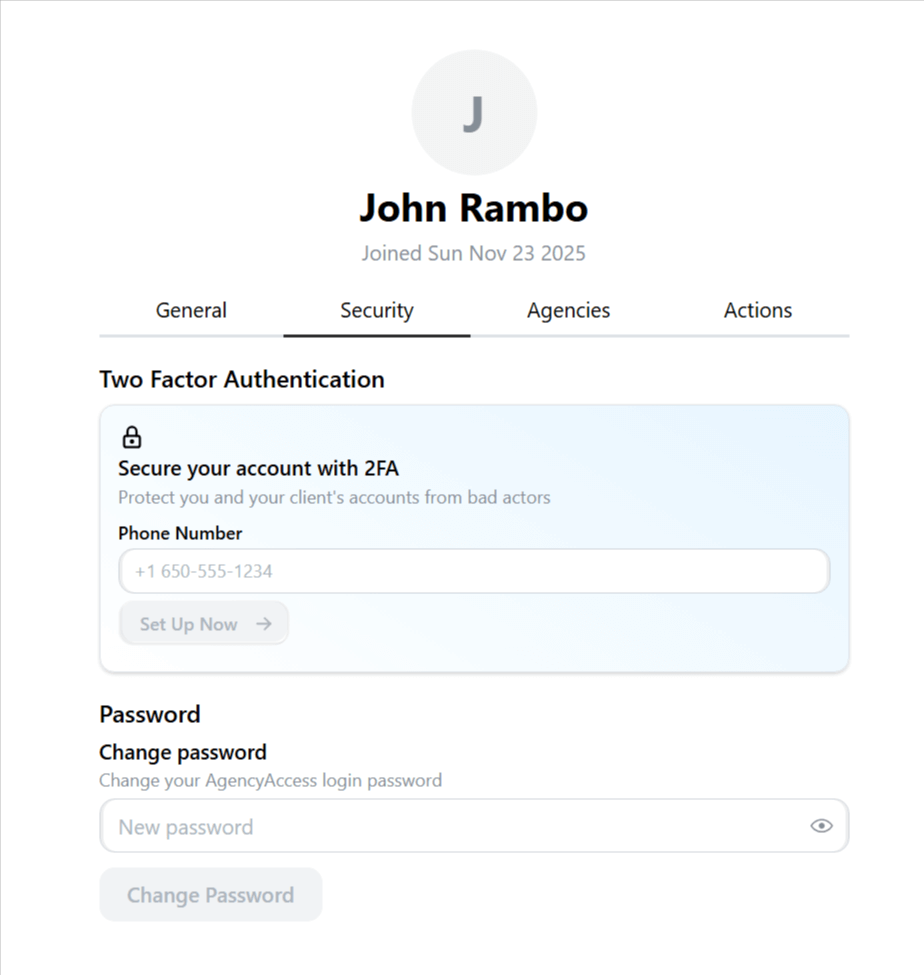
Setting Up SMS-Based 2FA
- Click your profile/avatar (top right) to go to Settings page
- Navigate to Security tab
- Find Two-Factor Authentication section
- Enter your phone number (must have verified email first)
- Click "Set Up Now"
- Complete reCAPTCHA verification
- Enter the 6-digit code sent to your phone
- 2FA is now enabled
Requirements:
- Your email address must be verified before enabling 2FA
- Valid phone number in international format (e.g., +1 650-555-1234)
Authenticator App Support
AgencyAccess also supports TOTP-based authenticator apps such as:
- Google Authenticator
- Authy
- Microsoft Authenticator
- 1Password
- And other TOTP-compatible apps
When logging in with 2FA enabled, you'll be presented with options to:
- Get a text message - Receive a 6-digit code via SMS
- Use your authenticator app - Enter a code from your authenticator app
How It Works:
- When you log in with 2FA enabled, you'll be prompted to enter a 6-digit code
- Choose your preferred method (SMS or authenticator app)
- Enter the code to complete authentication
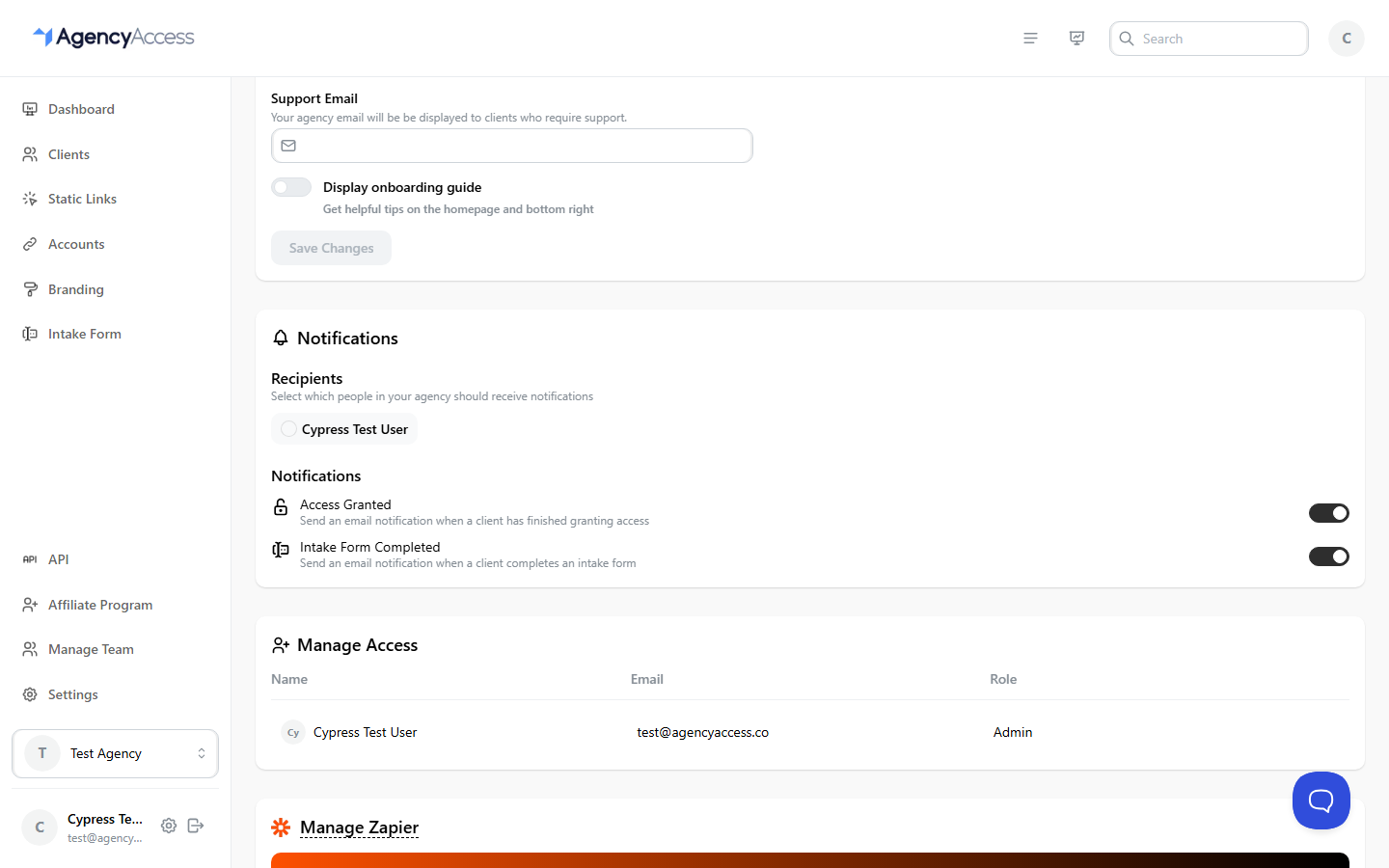
Notification Settings
Configure when and how you receive notifications.
Notification Recipients
Select which team members should receive notifications:
- Go to Settings → General → Notifications
- Find "Recipients" section
- Click on team member names to select/deselect
- Selected members receive notification emails
- Changes save automatically
Notification Types
Configure which events trigger notifications:
Access Granted:
- Receive email when a client finishes granting access
- Toggle ON/OFF as needed
- Applies to all selected recipients
Intake Form Completed:
- Receive email when a client completes an intake form
- Toggle ON/OFF as needed
- Applies to all selected recipients
Steps to Configure:
- In Notifications section
- Toggle each notification type ON or OFF
- Changes save automatically (with debounce)
Onboarding Guide
Control whether the onboarding guide appears:
- In Agency Details section
- Find "Display onboarding guide" toggle
- Toggle ON to show guide again
- Toggle OFF to hide it
- Changes save automatically
Use Cases:
- Show guide to new team members
- Reference guide when learning new features
- Hide guide if you're familiar with the platform
Integrations

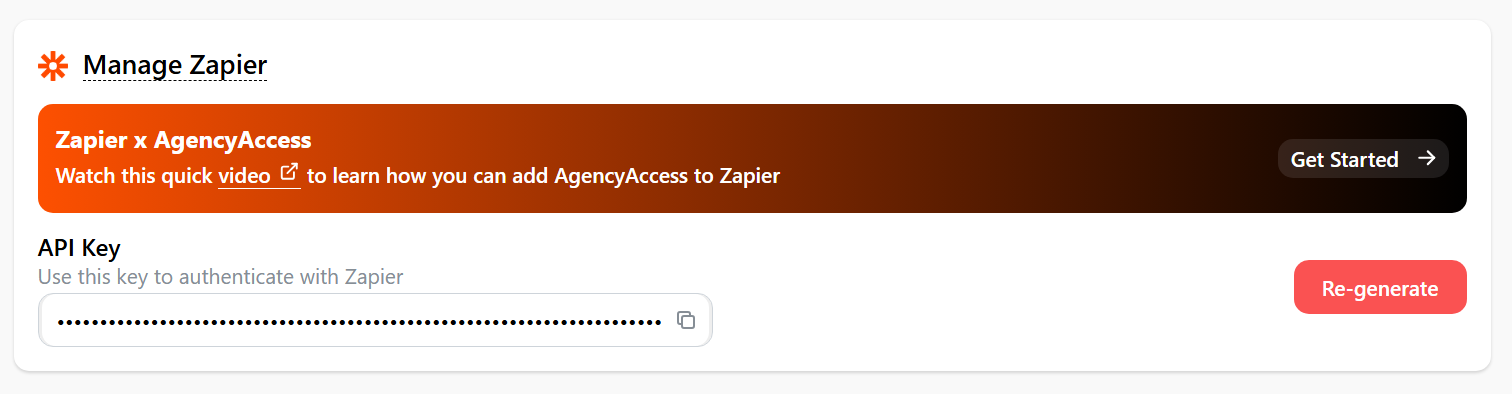
Zapier Integration
Connect AgencyAccess with Zapier for automation:
Setting Up Zapier:
- Go to Settings → General → Manage Zapier
- Review the setup guide
- Generate or view your Zapier API key
- Use the key in Zapier when connecting AgencyAccess
- Follow Zapier's connection flow
Zapier API Key:
- Unique key for your agency
- Used to authenticate Zapier connections
- Can be regenerated if needed
- Keep secure and don't share
Regenerating Zapier Key:
- In Manage Zapier section
- Click "Re-generate" button
- Confirm regeneration
- Important: Update all Zapier zaps with new key
- Old key is immediately invalidated
Note: Zapier integration requires Premium or Agency plan.
Subscription Management

Available Plans
AgencyAccess offers the following subscription plans:
Billing Periods
Choose between:
- Monthly billing: Pay month-to-month
- Yearly billing: Save 25% with annual payment
Free Trial
New paid plan subscriptions include a 30-day free trial:
- Trial starts when you select a paid plan
- Full access to all plan features during trial
- Trial countdown displayed in your dashboard
- Add a payment method to continue after trial ends
- Cancel anytime during trial at no charge
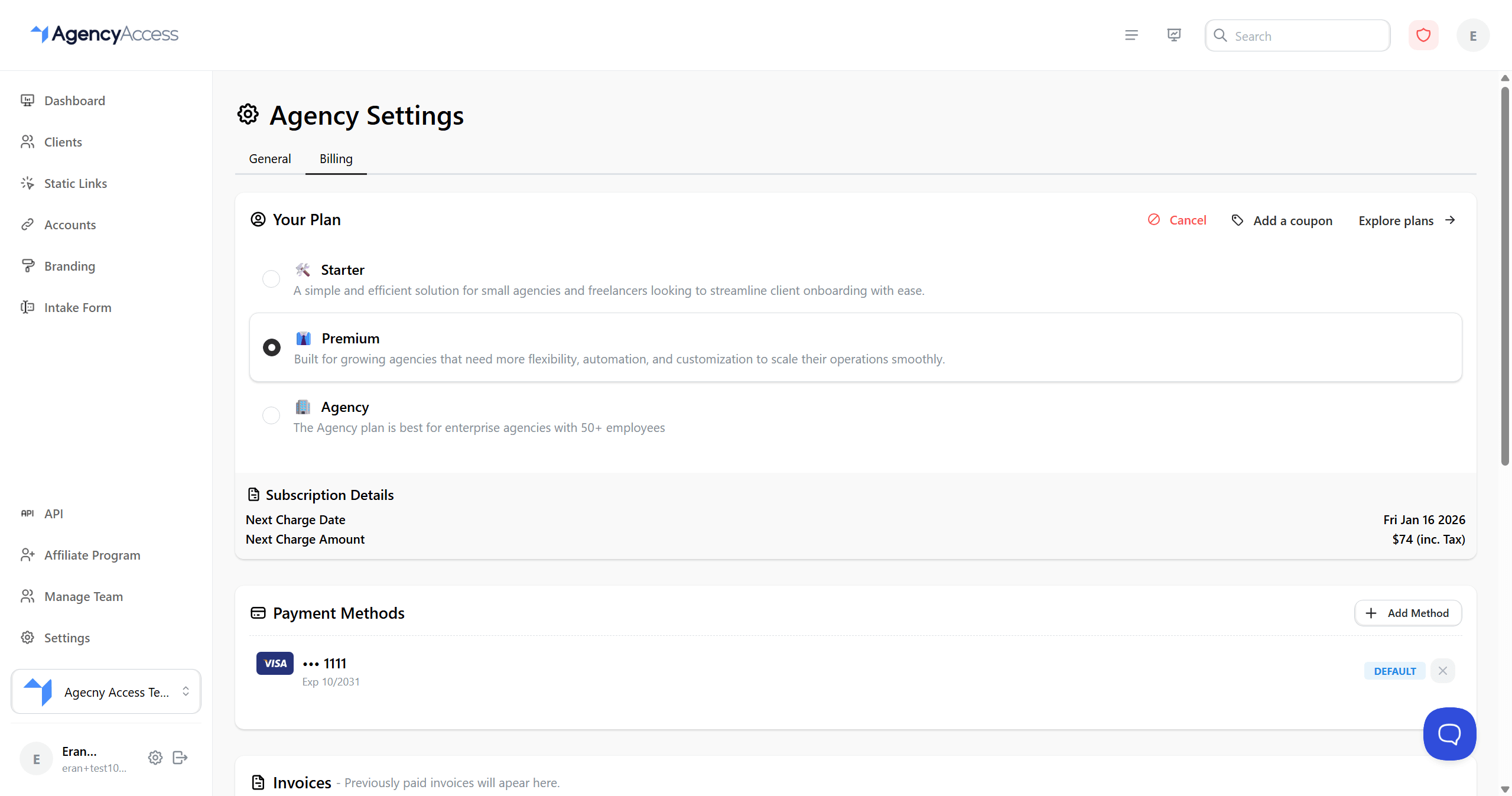
Viewing Your Subscription
Access your subscription and billing details:
- Navigate to Settings from the left sidebar menu
- Click on the Billing tab
- View:
- Current plan and status
- Subscription status (Active/Trialing/Expired)
- Billing period (Monthly/Yearly)
- Next billing date or trial end date
- Plan price and any discounts
- Payment methods
- Account credit balance
- Tax IDs
- Invoice history
Managing Subscription
Switching Plans:
- Go to Settings → Billing
- Click "Switch" button in the Plan section
- Select new plan and billing period
- Review price changes (prorated for mid-cycle changes)
- Complete checkout process
- Changes apply immediately
Canceling Subscription:
- Go to Settings → Billing
- Click "Cancel" button in the Plan section
- Review what you'll lose:
- Agency clients
- Zapier workflows
- Custom branding
- Intake forms
- Static links
- Confirm cancellation
- Service continues until end of billing period
- A 2-day grace period is added after subscription ends
Managing Payment Methods:
- Go to Settings → Billing
- Scroll to Payment Methods section
- Supported payment types:
- Credit/Debit Card
- PayPal
- SEPA Direct Debit (EUR)
- Click "Add Method" to add a new payment method
- Click "Make Default" to set a payment method as default
- Click the trash icon to remove a payment method
Currency Support
AgencyAccess supports multiple currencies:
- EUR (Euro)
- USD (US Dollar)
- GBP (British Pound)
Your currency is automatically detected based on your location. You can change it during checkout.
Coupon Codes
Apply discount codes to your subscription:
- Go to Settings → Billing
- Click "Add Coupon"
- Enter your coupon code
- Click "Apply"
- Discount applies to future invoices
Coupons may offer:
- Percentage discounts
- Fixed amount discounts
- One-time or recurring discounts
Tax ID Management
Add tax IDs to appear on your invoices:
- Go to Settings → Billing
- Scroll to Tax IDs section
- Click "Add Tax ID"
- Select tax ID type (VAT, GST, etc.)
- Enter your tax ID number
- Tax ID appears on future invoices
You can add up to 5 tax IDs per agency.
Account Credit
View and manage account credit:
- Credit balance shown in Billing tab
- Credit automatically applied to future invoices
- Credit may come from refunds or promotional offers
Invoices
Access your invoice history:
- Go to Settings → Billing
- Scroll to Invoices section
- View all past invoices
- Click to download PDF invoices
- Invoices include tax IDs if configured
Account Settings (User Level)
Personal Account Information
Manage your personal account (separate from agency):
- Click your profile/avatar (top right)
- You'll be redirected to the Settings page (
/settings) - Navigate to the General tab
- Update:
- Display name
- Company name
- Email address (may require verification)
Security Settings
Manage your account security:
- Go to Settings page (click avatar)
- Navigate to Security tab
- Change your password
- Enable two-factor authentication (2FA)
Email Updates
Changing your email address:
- Go to Settings → General tab
- Update your email address
- May require email verification
- You'll need to confirm the new email
- Old email may remain valid for a period
- Update all associated services
Managing Agencies
View and switch between agencies:
- Go to Settings page (click avatar)
- Navigate to Agencies tab
- View all agencies you belong to
- Switch between agencies if you're a member of multiple
Data and Privacy
Data Export
Request a copy of your data:
- Contact support for data export
- Include specific data types needed
- Exports provided in standard formats
- May take time to process
Account Deletion
Deleting your account:
- Contact support to initiate deletion
- Review data retention policies
- Understand what data is deleted
- Consider backing up important data first
Warning: Account deletion is permanent and cannot be undone.
Settings Best Practices
- Keep Information Updated: Regularly review and update agency details
- Secure Your Account: Use strong passwords and enable 2FA
- Configure Notifications: Set up notifications for important events
- Review Team Access: Regularly audit team member access
- Monitor Subscription: Keep track of plan limits and usage
- Backup Important Data: Export data periodically if needed
Troubleshooting
Settings Not Saving
Issue: Changes to settings don't persist
Solutions:
- Wait for auto-save (some settings auto-save)
- Click "Save Changes" button if available
- Refresh page and try again
- Check for error messages
- Verify you have permission to change settings
Cannot Access Settings
Issue: Settings page doesn't load or is inaccessible
Solutions:
- Verify you're signed in
- Check your account has Admin role (for agency settings)
- Try different browser
- Clear browser cache
- Contact support if issue persists
Notification Emails Not Received
Issue: Not receiving notification emails
Solutions:
- Check notification settings are enabled
- Verify you're selected as a recipient
- Check spam/junk folder
- Verify email address is correct
- Test with a different email address
Subscription Issues
Issue: Problems with subscription or billing
Solutions:
- Check subscription status in settings
- Verify payment method is valid
- Contact billing support
- Review plan limits and usage
- Check for billing emails
Settings Organization
Settings are organized into sections:
- Agency Details: Basic agency information
- Notifications: Email notification preferences
- Manage Access: Team member management
- Manage Zapier: Integration setup
- Account Settings: Personal account settings (via profile menu)
- Subscription: Billing and plan management (via profile menu)
Next Steps
After configuring settings:
- Review all settings periodically
- Update information as needed
- Train team members on relevant settings
- Set up integrations if needed
- Configure notifications for your workflow
For more information, see: