Back to Documentation

Managing Your Team

Add team members to your agency, assign roles (Admin or User), manage permissions, and collaborate effectively with your team.

This guide explains how to add team members to your agency, manage their access, and collaborate effectively.

Overview

Team management allows you to:

Team management section showing team members
Team members overview
  • Invite team members to your agency
  • Assign roles (Admin or User)
  • Manage team member access
  • Remove team members when needed

Accessing Team Management

Navigate to Dashboard → Settings → General and scroll to the "Manage Access" section.

Alternatively, use the quick navigation: Dashboard → Manage Team from the sidebar.

Team Roles

AgencyAccess supports two team roles:

Admin

  • Full access to all agency features
  • Can manage team members (add/remove)
  • Can modify agency settings
  • Can access billing and subscription
  • Can create and manage API keys
  • Can delete clients and links

User

  • Can create and manage clients
  • Can create and manage access links
  • Can view agency data
  • Cannot manage team members
  • Cannot modify agency settings
  • Cannot access billing
  • Cannot create API keys

Note: The agency creator is automatically an Admin and cannot be removed.

Adding Team Members

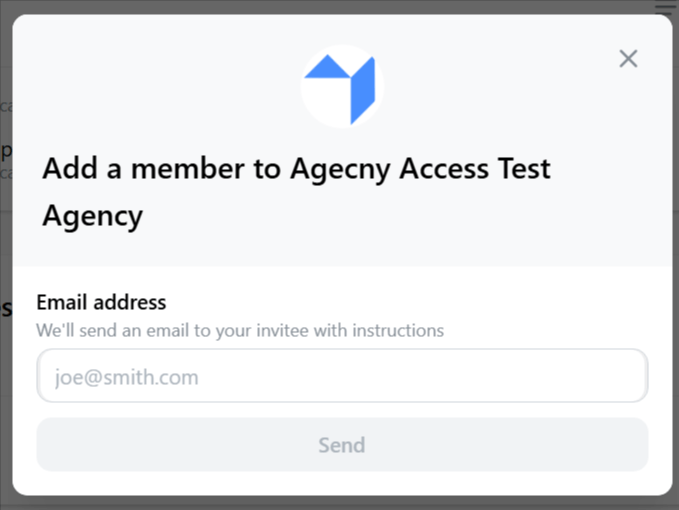
Add team member modal
Invite a new team member

Inviting a New Team Member

  1. Go to Settings → General → Manage Access
  2. Click "Add Member" button
  3. Enter the team member's email address
  4. Click "Send"
  5. An invitation email is sent automatically

Invitation Process

For New Users (not yet on AgencyAccess):

  1. They receive an invitation email
  2. They click the link to sign up for AgencyAccess
  3. Their account is automatically added to your agency
  4. They appear in your team list once they sign up

For Existing Users (already on AgencyAccess):

  1. They receive an invitation email
  2. They're automatically added to your agency
  3. They can switch between agencies in their account
  4. They appear in your team list immediately

Invitation Status

Team members can have different statuses:

  • Active: User has signed up and is active
  • Pending: Invitation sent but user hasn't signed up yet
  • Shows as "User has not signed up yet" in the list

Viewing Team Members

The Manage Access section shows:

  • Name: Team member's name (or "User has not signed up yet" if pending)
  • Email: Team member's email address
  • Role: Admin or User
  • Profile Picture: Avatar if available

Managing Team Members

Roles

Role assignment is automatic and fixed:

  • The agency creator is automatically assigned the Admin role
  • All invited users are assigned the User role
  • Roles are assigned at invitation time and cannot be changed

Important: There is currently no way to change a user's role after they've been invited. If you need someone to have Admin access, they must be the agency creator. Role management features may be expanded in future updates.

Removing Team Members

Only Admins can remove team members:

  1. Find the team member in the list
  2. Click the trash icon (appears on hover for Admins)
  3. Confirm removal in the modal
  4. Team member is removed immediately

What Happens When Removed:

  • Team member loses access to your agency
  • They're removed from the team list
  • They can no longer access agency data
  • If they were pending, the invitation is revoked

Note: You cannot remove yourself if you're the only Admin.

Team Member Permissions

What Team Members Can Do

All Team Members (Admin and User):

  • View dashboard
  • Create and manage clients
  • Create and manage access links
  • View client data and link status
  • Access accounts page (view only)
  • View branding settings

Admins Only:

  • Add and remove team members
  • Modify agency settings (name, email, website)
  • Access billing and subscription
  • Create and manage API keys
  • Delete clients and links
  • Modify branding
  • Set up intake forms
  • Manage connected accounts (link/unlink)

What Team Members Cannot Do

Users Cannot:

  • Invite or remove team members
  • Change agency settings
  • Access billing information
  • Create API keys
  • Delete the agency
  • Modify certain agency-wide settings

Best Practices

  1. Start with Admins: Add trusted team members as Admins initially
  2. Use User Role for Limited Access: Assign User role to team members who only need basic access
  3. Regular Audits: Periodically review team members and remove inactive users
  4. Clear Communication: Inform team members about their roles and permissions
  5. Secure Access: Only invite team members you trust with client data

Collaboration Features

Shared Access

All team members can:

  • See the same clients and links
  • View real-time link status
  • Access shared account connections
  • Use the same branding settings

Activity Visibility

Team members can see:

  • All clients in the agency
  • All access links created by any team member
  • Link status and grant progress
  • Client information and intake form responses

Note: Individual activity logs or attribution may vary by feature.

Troubleshooting

Invitation Not Received

Issue: Team member didn't receive invitation email

Solutions:

  • Check spam/junk folder
  • Verify email address is correct
  • Resend invitation (remove and re-add)
  • Have team member check their AgencyAccess account directly

Cannot Add Team Member

Issue: "Add Member" button doesn't work or is disabled

Solutions:

  • Verify you're an Admin (only Admins can add members)
  • Check you haven't reached team size limits (if applicable)
  • Refresh the page and try again
  • Contact support if issue persists

Team Member Can't Access Agency

Issue: Team member says they can't see the agency

Solutions:

  • Verify they've accepted the invitation
  • Check they're signed into the correct account
  • Ensure they haven't been removed
  • Have them check their agency switcher (if they belong to multiple agencies)

Wrong Role Assigned

Issue: Team member has incorrect role

Solutions:

  • Contact support to change roles
  • Document the desired role change
  • Verify role requirements for your use case

Cannot Remove Team Member

Issue: Remove button doesn't appear or doesn't work

Solutions:

  • Verify you're an Admin
  • Ensure you're not trying to remove yourself as the only Admin
  • Try refreshing the page
  • Contact support if needed

Team Size Limits

Your subscription plan may limit the number of team members:

  • Check your plan details for team size limits
  • Upgrade your plan if you need more team members
  • Contact support to discuss custom team size needs

Security Considerations

  1. Access Control: Only invite trusted team members
  2. Role Management: Use User role for team members who don't need full access
  3. Regular Reviews: Periodically audit team member list
  4. Remove Promptly: Remove team members who leave your organization
  5. Secure Invitations: Send invitations to verified email addresses only

Multi-Agency Access

Team members can belong to multiple agencies:

  • They can switch between agencies in their account
  • Each agency has its own team and settings
  • Access is separate for each agency
  • They appear in each agency's team list

Next Steps

After setting up your team:

  • Assign appropriate roles
  • Train team members on AgencyAccess features
  • Set up collaboration workflows
  • Review team access regularly

For more information, see: