
Introduction
Whether you're a business owner bringing on a marketing agency or an agency onboarding a new client, getting access to Facebook Pages and ad accounts is one of the first — and most frustrating — steps in any working relationship.
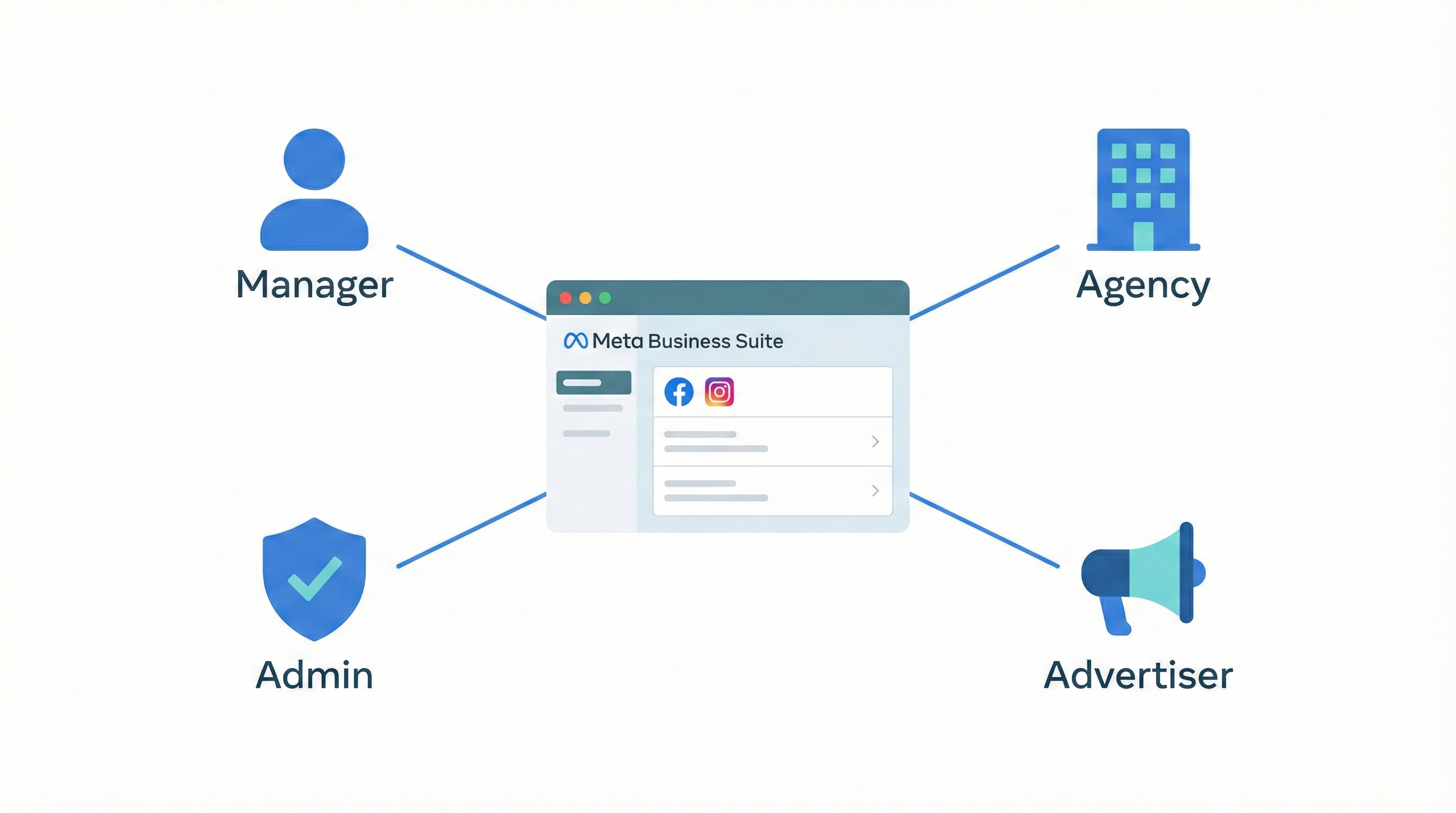
Meta has consolidated most of its access management into Meta Business Suite, replacing the older Business Manager interface and the legacy Page role system (Admin, Editor, Moderator) with a new permissions model. That's good news for security and flexibility, but it also means many of the instructions floating around the internet are outdated.
This guide covers everything you need to know about granting, managing, and troubleshooting access to Facebook Pages and ad accounts in 2026. It's written for both business owners who need to share access and agency teams who want a resource to send to clients.
The short version: If you're an agency looking to skip the manual access process entirely, AgencyAccess lets you send clients a single branded link to connect their Facebook Page, ad accounts, Instagram, and 20+ other platforms — no instructions or screen-share calls required. Learn more →
Understanding Meta's Permission System
Before diving into the step-by-step instructions, it helps to understand how Meta organizes access in 2026. There are two layers of permissions:
Business-level permissions control who can manage your entire Meta Business Portfolio — all Pages, ad accounts, pixels, and connected assets. An Admin at this level has full control over every asset in the portfolio, including adding and removing people.
Asset-level permissions control what someone can do with a specific Page or ad account. For Pages, the two main levels are Full Control (the equivalent of the old Admin role) and Content Control (posting, messaging, and commenting). For ad accounts, the key roles are Advertiser (create and manage campaigns) and Analyst (view-only reporting).
If you've used Facebook's older role system, here's how the legacy roles map to the new model:
| Legacy Role | New Equivalent |
|---|---|
| Admin | Full Control |
| Editor | Content Control |
| Moderator | Content Control (limited) |
| Advertiser | Assigned at the ad account level |
| Analyst | Assigned at the ad account level |
With that foundation in place, let's walk through the most common access scenarios.
How do I give my manager access on my Facebook page?
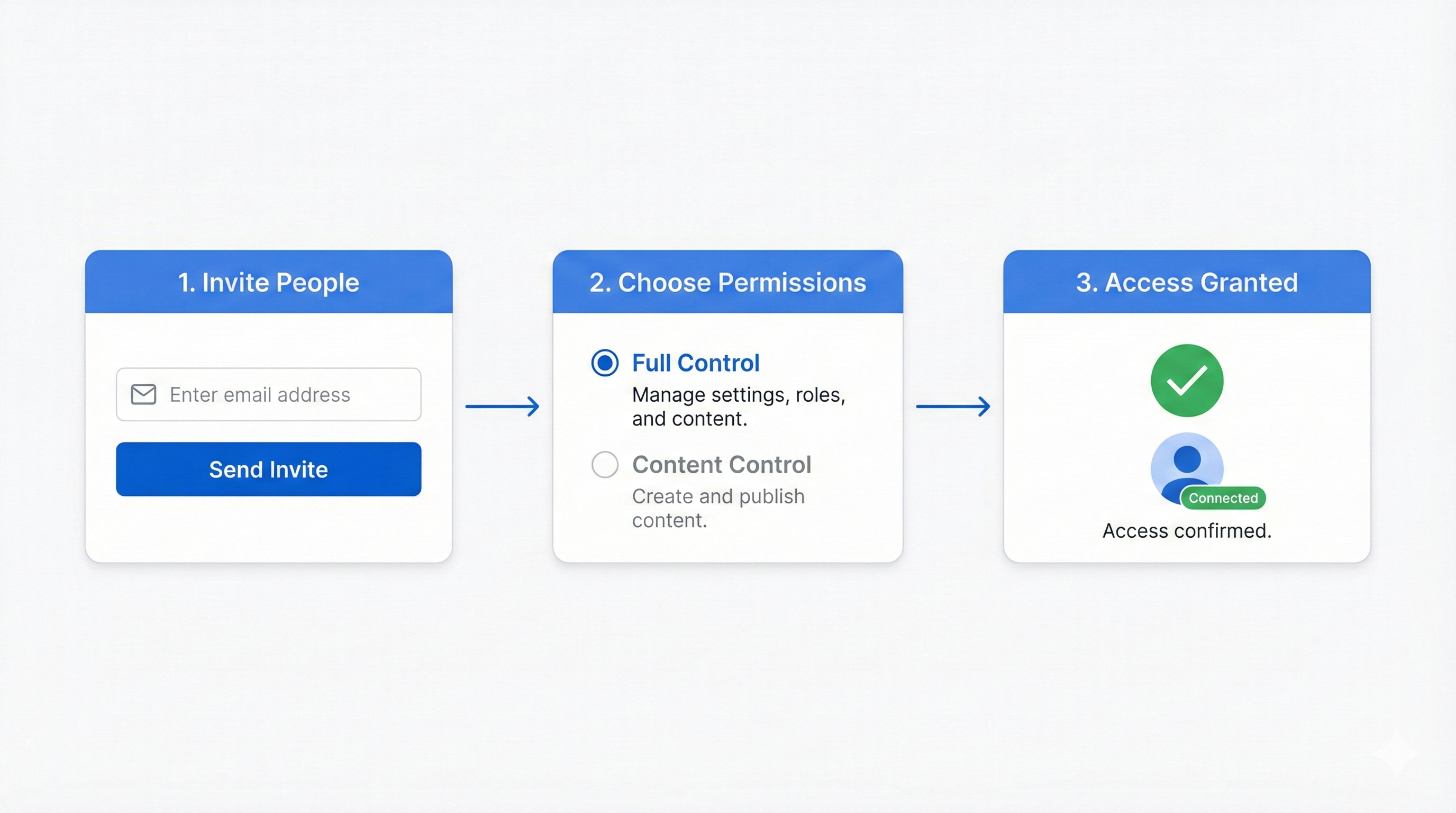
To give your manager access to your Facebook Page, open Meta Business Suite, go to Settings > People, and click Invite People. Enter your manager's email address, then select the Page you want to share and choose their permission level — such as Content Control for posting and messaging, or Full Control for complete management.
Click Send Invite, and your manager will receive an email to accept. They'll need a personal Facebook account to log in, but their personal profile won't be visible on your Page. If you don't see the People option, you may need to claim your Page in Business Suite first — more on that in the troubleshooting section below.
How do I add a person to manage a business Facebook page?
Go to Meta Business Suite > Settings > People and click Invite People. Enter the person's email, select the Facebook Page you want them to manage, and assign a role. Full Control lets them publish content, respond to messages, run ads, and manage settings. Content Control restricts them to posting and messaging only.
After you send the invite, the person must accept it from their email. You can manage multiple people per Page, each with different permission levels. If the person doesn't have a Meta Business Suite account yet, they'll be prompted to create one during the invitation process.
How do I add a person as an admin?
In Meta Business Suite, navigate to Settings > People, then click Invite People. Enter their email and toggle on Admin Access at the business level, or assign Full Control at the Page level — which is the equivalent of the legacy "Admin" role.
Admins can manage all aspects of your Page, including adding or removing other people, changing settings, and publishing content. Be cautious with admin access: only grant it to people you fully trust, since admins can remove other admins — including you. For most collaborators, a more limited role like Content Control or Advertiser is safer and still gives them the tools they need.
How to make someone an admin on Facebook?
Meta has updated its role names, but making someone an "admin" now means giving them Full Control of your Page. In Meta Business Suite, go to Settings > People, click Invite People, and enter their email. When assigning Page permissions, select Full Control — this grants them the ability to manage Page settings, publish content, respond to messages, run ads, and add or remove other team members.
If you want to give admin access at the business level (managing all assets in your portfolio), toggle on Admin Access during the invitation. The legacy role labels like "Admin" and "Editor" have been replaced by the new permission-based system in Meta Business Suite, though some Pages that haven't migrated may still display the old terminology.
How do I add an admin to my meta business suite?
To add an admin in Meta Business Suite, go to Settings > People and click Invite People. Enter the person's email address, then enable the Admin Access toggle — this is the business-level admin role that gives them control over your entire Business Portfolio, including all Pages, ad accounts, and connected assets.
Click Send Invite and they'll receive an email to accept. Business-level admins can add or remove people, manage payment methods, and adjust settings across all your assets. If you only want them to admin a specific Page rather than the whole business, skip the Admin toggle and instead assign Full Control on just that Page under the asset permissions section.
How do you give someone access to your Facebook ads account?
Open Meta Business Suite > Settings > Ad Accounts, select the ad account, and click Add People. Enter the person's name or email and choose a role: Advertiser to create and manage campaigns, or Analyst for reporting-only access.
If you're granting access to an outside agency, use the Assign Partners option instead and enter their Business Portfolio ID. The person will be able to access the ad account through their own Ads Manager without needing your password. You can change or revoke their access at any time from the same settings panel. It's good practice to review who has access to your ad accounts periodically to maintain security.
How to make Facebook ads shareable?
Facebook ads themselves aren't directly "shareable" like posts, but you can share access to your ad account so others can view, create, or manage your campaigns. In Meta Business Suite, navigate to Settings > Ad Accounts, select the account, and click Add People. Assign the appropriate role — Analyst for view-only access or Advertiser for full campaign management.
Alternatively, you can share a Business Page post as an ad by selecting "Use Existing Post" when creating a campaign in Ads Manager, which lets multiple team members collaborate on promoted content without duplicating creative assets.
How to give an agency access to a Facebook page?
To give a marketing agency access to your Facebook Page, ask the agency for their Meta Business Portfolio ID (a numeric ID found in their Business Settings). Then go to Meta Business Suite > Settings > Pages, select your Page, and click Assign Partners. Enter the agency's Business ID and choose permission levels like content creation, ads management, or full admin control.
The agency will see your Page in their own Business Suite without needing your login credentials. This is the safest method because you retain full ownership, and you can revoke access at any time.
Tools like AgencyAccess can simplify this entire process by letting clients grant page, ad account, and analytics access through a single guided link — eliminating the need to exchange Business IDs or walk through each platform separately.
How do I give someone else access to my business Facebook page?
The fastest way is through Meta Business Suite. Go to Settings > People > Invite People, enter their email address, and assign a Page role. You can choose between Full Control (admin-equivalent), Content Control (posting and messaging), or more limited permissions depending on what they need to do.
The invited person accepts via email and can then manage your Page from their own account — no password sharing required. If you're onboarding an entire agency team, consider using a tool like AgencyAccess to send one link that collects access to your Facebook Page, ad accounts, Instagram, and other platforms all at once, rather than walking through each platform individually.
How do I get my Facebook URL link?
To find your Facebook Page URL, go to your Page on Facebook and look at the address bar — it will show something like facebook.com/YourPageName. Alternatively, in Meta Business Suite, go to Settings > Page Setup (or Business Info), and you'll see your Page's URL listed there.
If you want a custom, clean URL (called a vanity URL), go to your Page's Settings, click General > Username, and create a unique username. Your URL will then become facebook.com/YourUsername. You need at least 5 characters, and the name must be unique across Facebook. Having a clean URL makes it easier to share your Page on business cards, emails, and marketing materials.
Troubleshooting Common Access Issues
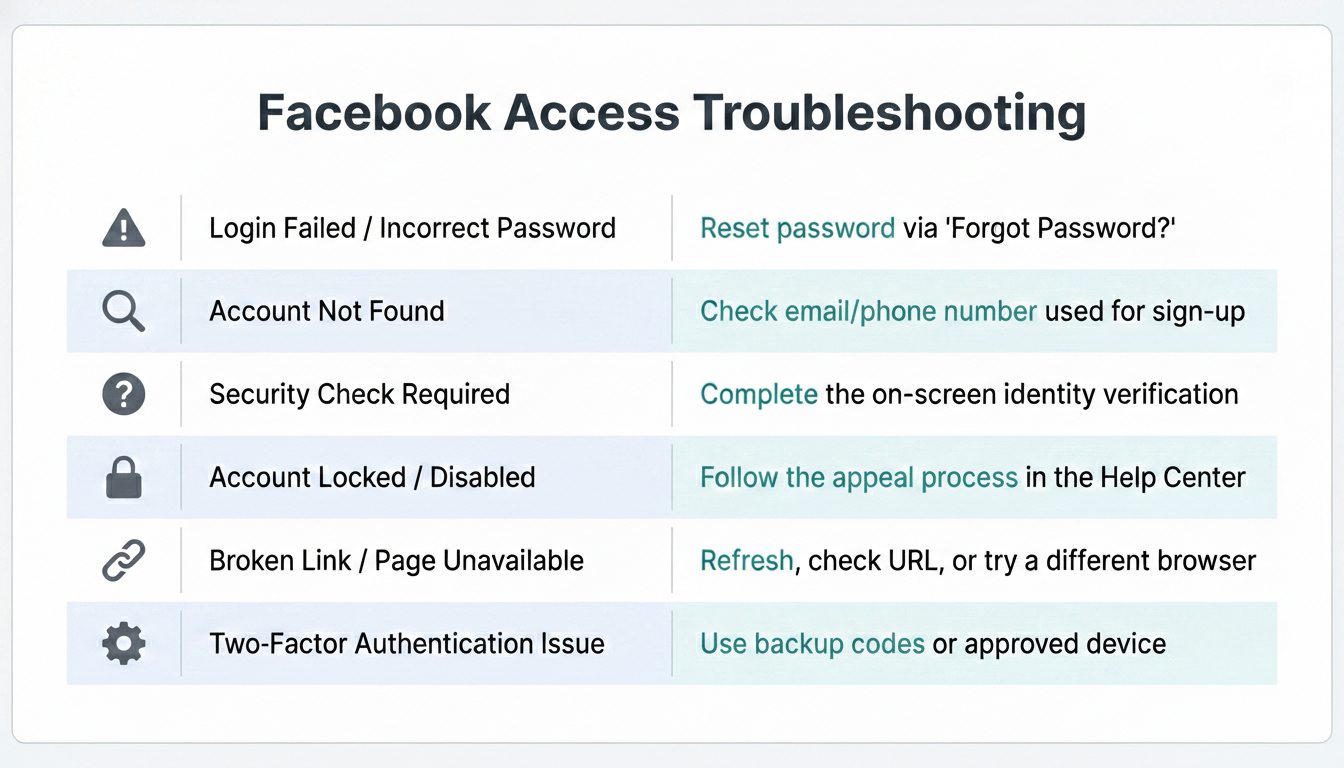
Even with clear instructions, access-related issues are one of the most common causes of delays in agency onboarding. Below are the problems we see most often, along with straightforward fixes.
"I can't find the Settings or People option in Meta Business Suite"
This usually means your Facebook Page hasn't been added to a Meta Business Portfolio yet. Go to business.facebook.com, log in with your personal Facebook account, and follow the prompts to create a Business Portfolio (formerly called Business Manager). Once it's set up, click Settings > Accounts > Pages > Add and claim your existing Page.
After that, the People and permissions options will appear. If you already have a Business Portfolio but still can't see Settings, make sure you're logged into the correct Facebook account — the one that originally created or owns the Page.
"My agency says they don't have access, but I already sent the invite"
The most common cause is that the invitation email landed in spam or was sent to the wrong email address. Ask your agency to check their spam/junk folder for an email from Meta. If they can't find it, go to Meta Business Suite > Settings > People, look for the pending invite, and resend it — or delete it and create a new one with the correct email.
Another frequent issue: the agency accepted the invite with a different Facebook account than the one linked to their Business Portfolio. They'll need to accept while logged into the right account.
"I don't know my Meta Business Portfolio ID (and my agency is asking for it)"
Your Business Portfolio ID is a string of numbers that identifies your business in Meta's system. To find it, go to business.facebook.com, click Settings (the gear icon), and look at the URL in your browser — the number after /settings/ is your ID. It also appears at the top of the Business Settings page under your business name.
Copy and paste this number to your agency. If your agency is asking you to enter their ID (to grant them partner access), they need to provide it to you — you won't find their ID in your own account.
"I accidentally gave someone the wrong role or too much access"
You can change permissions at any time. Go to Meta Business Suite > Settings > People, find the person's name, and click on them. You'll see which assets they have access to and at what level. Click the asset (like your Page or ad account) to change their role, or click Remove to revoke access entirely. Changes take effect immediately.
If you gave someone Full Control and want to downgrade them to Content Control, just edit their Page permissions. If you accidentally removed yourself as admin, you'll need another admin on the account to add you back.
"My agency needs access to my ad account, but I can't find it in Business Suite"
Your ad account might not be connected to your Business Portfolio yet. In Meta Business Suite, go to Settings > Accounts > Ad Accounts > Add. You'll see options to add an existing ad account (enter your Ad Account ID), request access to someone else's, or create a new one.
Your Ad Account ID can be found in Ads Manager — look at the URL or the account dropdown at the top. If you've never run ads before, you may not have an ad account yet, and your agency can create one within their own Business Portfolio on your behalf.
"I shared my password with my agency — is that a problem?"
Yes — sharing your personal Facebook password is a significant security risk and violates Meta's terms of service. Your agency doesn't need your password to manage your Page or run ads.
If you've already shared your password, change it immediately at Facebook > Settings > Security and Login > Change Password, and enable Two-Factor Authentication. After that, set up proper access through Meta Business Suite using the methods described in this guide. Your agency will have everything they need through their assigned roles, and you'll maintain full ownership and control of your accounts.
"My Page shows the old Admin/Editor roles — not the new permission system"
Meta has been gradually migrating Pages to the new "Page experience" and permission system. If you still see legacy roles like Admin, Editor, Moderator, and Advertiser, your Page may not have migrated yet.
You can still grant access using these roles — Admin gives full control, Editor allows posting and messaging, and Advertiser lets someone run ads. To check if you can migrate, go to your Page's Settings > New Pages Experience and follow the prompts. Once migrated, the old roles convert to the new Full Control / Content Control system, and you'll manage everything through Meta Business Suite.
"I'm getting 'You don't have permission to do this' errors"
This error usually means you're not an admin (or Full Control holder) of the Page or Business Portfolio. Only admins can invite new people or assign roles. If someone else set up the Page or business account, ask them to either grant you admin access or send the invitation on your behalf.
Another cause: if your personal Facebook account has security restrictions (such as a recent password reset or unverified identity), Meta may temporarily limit what you can do. Verify your identity in Facebook > Settings > Identity Confirmation and try again after 24 hours.
"My agency needs access to multiple accounts (Page, Ads, Instagram) and it's taking forever"
This is one of the most common frustrations in agency onboarding. Each platform — Facebook Page, ad account, Instagram, Google Ads, Analytics — has its own access flow, and doing them one by one typically means multiple rounds of emails and instructions.
This is exactly the problem AgencyAccess was built to solve. Instead of walking through each platform separately, you send your clients a single branded link. They log into each platform once, follow guided prompts, and the agency gets access to everything — Facebook Pages, ad accounts, Instagram, Google Ads, TikTok, and 20+ other platforms — in one sitting. No passwords shared, no back-and-forth, no screen-share calls.
"My agency removed me from my own Page — can I get it back?"
If you were removed as an admin and no one else on your team has access, this is a serious situation. Start by checking whether your Page is still part of a Meta Business Portfolio that you own — log into business.facebook.com and look there, as you may still have business-level control even if your Page role was removed.
If you've truly lost all access, contact Meta Business Support through the Help Center. To prevent this in the future, always keep at least two trusted admins on your Page and your Business Portfolio, and avoid granting business-level admin access to an outside agency — Page-level partner access is sufficient for their work.
A Faster Way to Handle Access
The steps in this guide work, but they require both sides — the business owner and the agency — to navigate Meta's settings correctly. In practice, that means sending instructions, answering questions, resending invitations, and troubleshooting issues over email or Zoom.
AgencyAccess was built specifically to eliminate this friction. Instead of explaining how to grant access across Facebook, Instagram, Google Ads, TikTok, and other platforms, agencies send clients a single branded onboarding link. Clients follow guided, platform-native prompts to connect each account, and the agency sees access appear in real time on a centralized dashboard.
No shared passwords. No Business Portfolio IDs to track down. No chasing people for weeks.
Key benefits for agencies:
- One link for all platforms: Collect access to Facebook Pages, ad accounts, Instagram, Google Ads, GA4, TikTok, LinkedIn, Shopify, and more in a single flow.
- Branded experience: Add your logo, colors, and custom copy so onboarding feels like part of your agency's process.
- Built-in intake forms: Gather budgets, goals, and other client details while they're already in setup mode.
- Real-time dashboard: See exactly which accounts are connected and what's still missing without digging through email threads.